Relocating a Reservation
Moving a reservation to a different lot — also called switching lots, switching a reservation, or relocating a reservation — can be done from the reservation panel or directly from the timeline. This is useful when a guest wants to switch to a different campsite, or when you need to relocate a guest due to maintenance or other reasons.
There are two ways to move a reservation to a different lot. You can either move the reservation from the reservation panel or drag it to a new lot from the timeline.
Rate Selection When Switching Lots
When you move or switch a reservation to a lot that has a different rate, PitchCamp will prompt you to choose how to handle the pricing. A "This lot has a different rate" dialog will appear, showing:
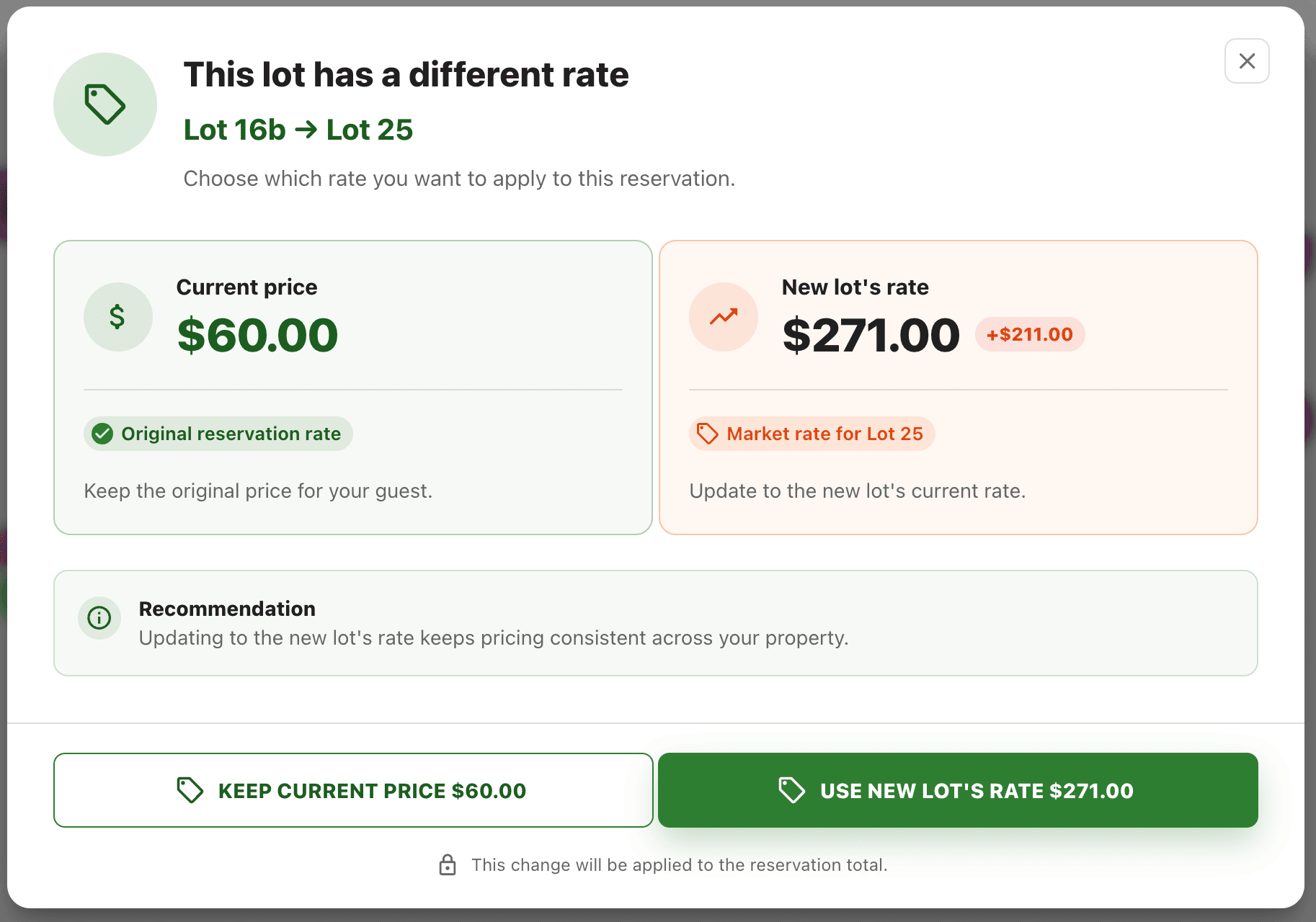
- Current price — the original rate the guest was charged on this reservation
- New lot's rate — the current market rate for the destination lot
You have two options:
| Option | What it does |
|---|---|
| Keep Current Price | Preserves the original rate the guest was quoted. The reservation total stays unchanged. |
| Use New Lot's Rate | Updates the reservation to the destination lot's current market rate. Recommended for keeping pricing consistent across your property. |
Note
If the two lots share the same rate or the rate is overridden, this dialog will not appear and the reservation will be moved without any pricing change.
Moving a Reservation from the Reservation Panel
To move a reservation from the reservation panel follow these steps:
- Go to the reservation panel.
- Select the reservation you would like to move from the grid or the timeline by clicking on it twice.
-
Now with the reservation that you want to move selected click on the
Searchicon located to the right of theLotsection.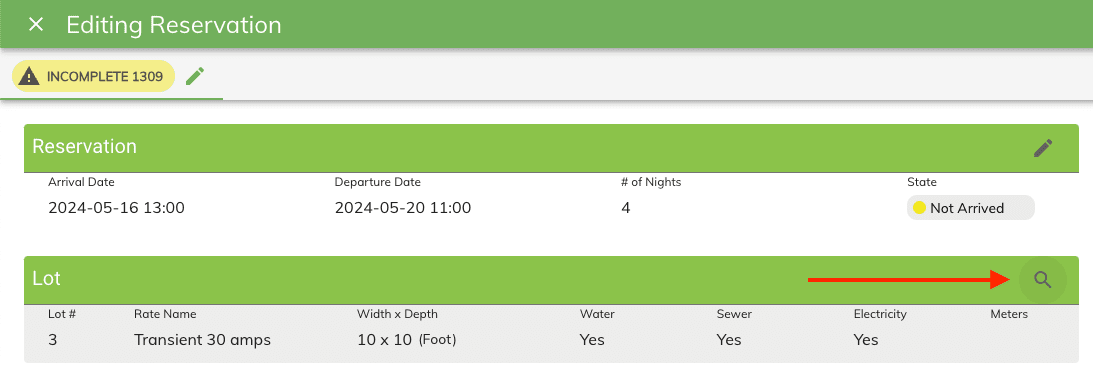
-
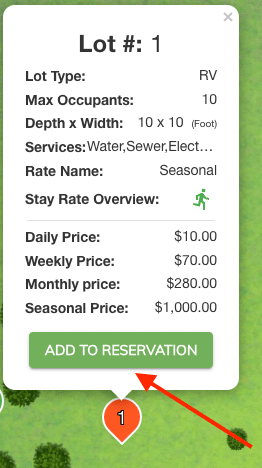
This will open up the campground map where you can select the new lot for the reservation. Note: only available lots will be displayed on the map.
-
If the new lot has a different rate, the rate selection dialog will appear. Choose whether to keep the current price or switch to the new lot's rate.
-
Then click on the
Savebutton to save the changes.
Moving a Reservation from the Timeline
To move a reservation from the timeline follow these steps:
- Go to the timeline.
- Click on the
Editicon located in the top left corner of the timeline. This will allow you to drag reservations onto different lots and adjust dates. -
Click on the reservation you would like to move to a different lot. You will see a
Moveicon appear to the left of the reservation. Click and hold on theMoveicon and drag the reservation to the new lot.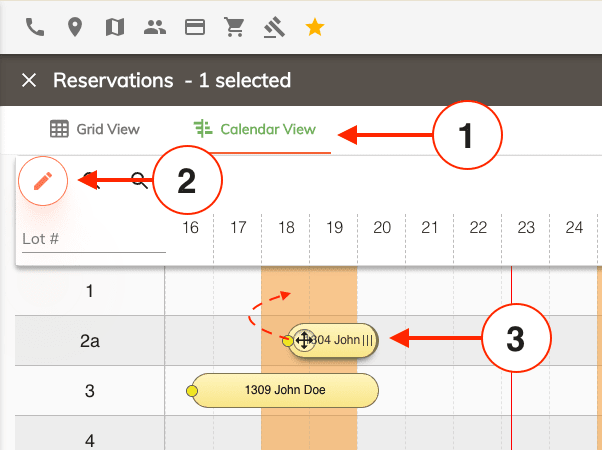
-
A confirmation dialog will appear asking "Are you sure you want to move this reservation?" — click
Continueto proceed orCancelto undo the move. - If the destination lot has a different rate, the rate selection dialog will then appear. Choose whether to keep the current price or switch to the new lot's rate.
- The reservation will snap into place on the new lot using the same arrival and departure dates as the original reservation.
- If you need to edit the reservation further you can do so by double clicking on it and making the necessary changes.