Import Reservations into Google Calendars
Importing reservations into Google Calendar is straightforward and beneficial for viewing your schedule or sharing it with others. This process focuses on consolidating reservations specifically from PitchCamp, ensuring they are visible in Google Calendar.
It differs from exporting and importing the OTA Booking Calendar for a specific lot, as this action combines all reservations, including blocked and OTA Booking Calendar events from platforms like Airbnb, into a single calendar view. This ensures comprehensive visibility of all reservations across different sources.
Copying the Export URL
To import reservations into Google Calendar, follow these steps:
- Go to
Adminfrom the main menu thenCampground Settings. - From the
Campground Settingsscreen, click on theOnline Campground Settingstab. -
Click on the
Copybutton beside the Booking Calendar Sync OTA - Export URL field. This will copy the URL to your clipboard.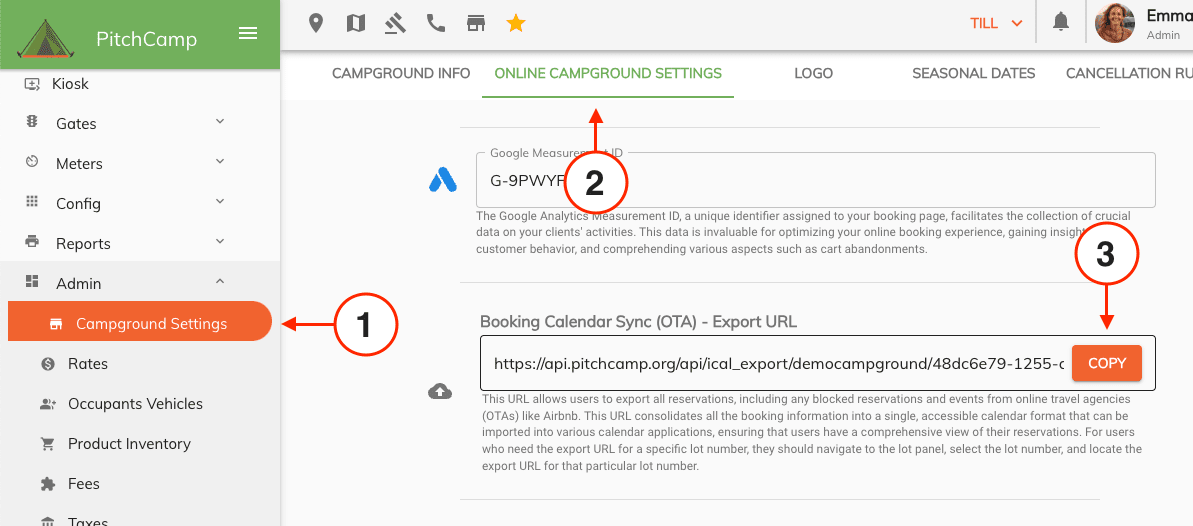
Importing into Google Calendar
- Open your Google Calendar in your browser.
-
Click on the
+icon besideOther calendarsand selectFrom URL.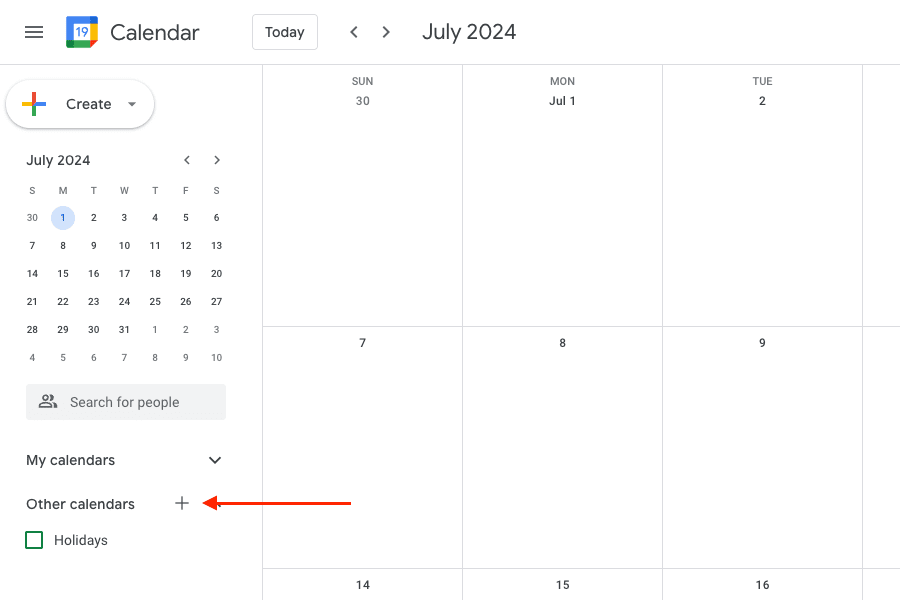
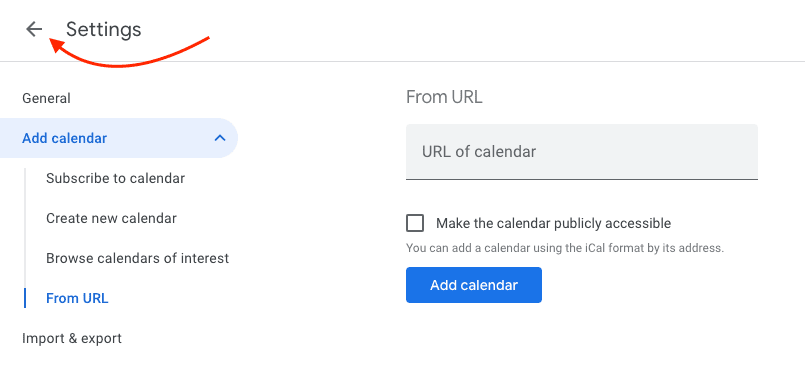
-
Paste the URL you copied from PitchCamp into the
From URLfield. -
Click on the
Add Calendarbutton.
-
Your reservations will now be imported into Google Calendar. You'll need to click the back arrow to view the calendar.
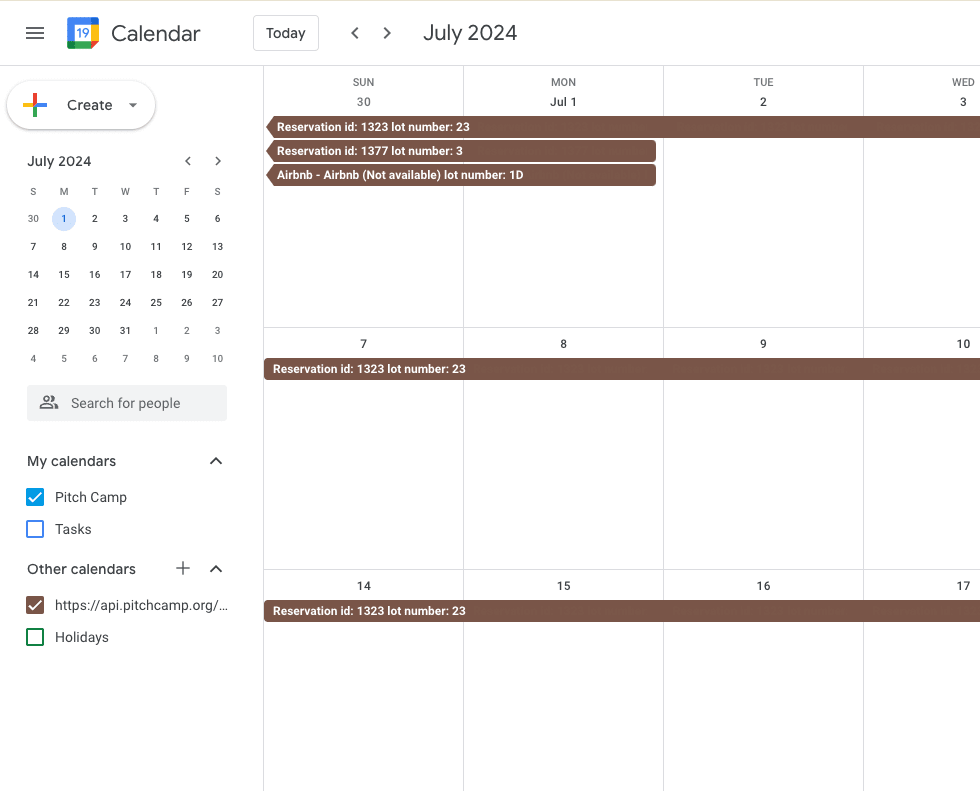
Viewing the PitchCamp Calendar
-
You should now see the PitchCamp calendar in your Google Calendar.
-
You can rename the calendar by clicking on the three dots beside the calendar name and selecting
Settings.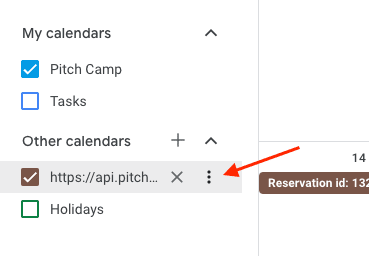
-
In the
Settingsscreen, you can change the calendar name.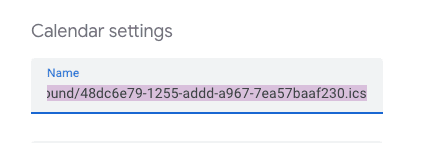
Note: to change the calendar color simply click on the three dots beside the calendar name and select a new color.
