Restricted Client Notes
Restricted Client Notes give you a second notes area on a client file that only designated staff can open. The everyday Client Notes field stays exactly as it is and remains visible to everyone who can open a client.
Use it for internal operational notes you do not want every staff member to read.
Warning
Restricted notes are for internal operational notes only. Do not use them to store payment card numbers, passwords, medical records, government identification numbers, or other regulated personal data.
How Access Works
Two separate things must both be true before a user can read a restricted note.
- The user must hold the privilege. An administrator grants Restricted Client Note to that specific user under Admin > User Accounts > Feature Privileges > Clients.
- The user must confirm their password. Even with the privilege, opening restricted notes asks the user to re-enter their password, unless they have entered it very recently. How recently is set by your campground. See Restricted Notes Password Confirmation.
Staff who do not hold the privilege see the client file exactly as before. There is no extra tab, no locked panel, and nothing indicating that a restricted note exists.
Granting the Privilege
- Open the navigational menu, expand Admin, and select User Accounts.
- Select the user you want to give access to.
- Open the Feature Privileges tab.
- Under the Clients group, check Restricted Client Note.
- Click Save.
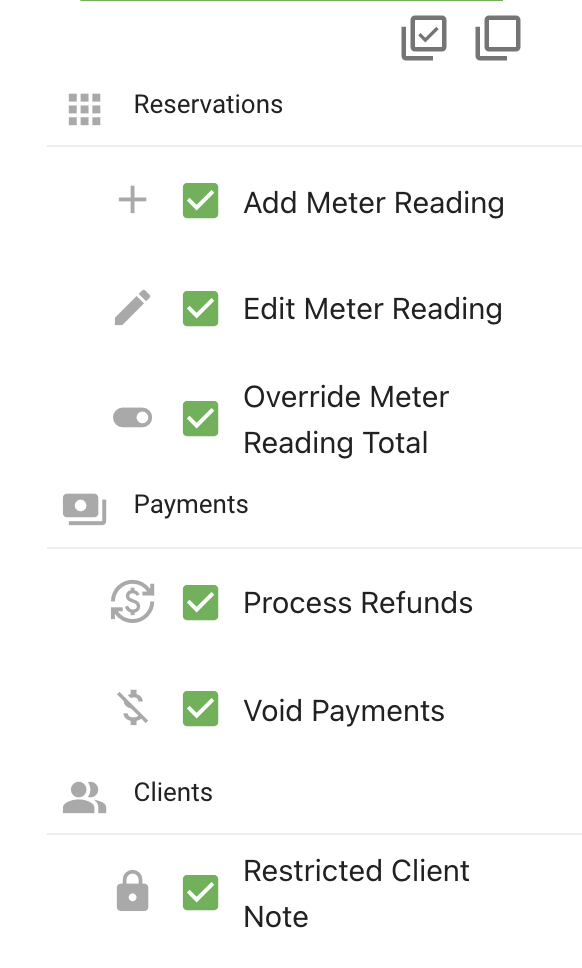
Note
This privilege is off for everyone when the feature is first installed, including administrators. Nobody can read restricted notes until you grant it deliberately. This is different from most other feature privileges, which are switched on for existing staff during an upgrade.
Removing the check box takes effect on that user's next action. They do not need to log out first.
Writing a Restricted Note
- Open a client from the Clients panel, or from a reservation.
- Scroll to the notes area at the bottom of the client window.
- Click the Restricted Notes tab, marked with a padlock and a Limited access badge.

- Confirm your password if you are asked for it.
- Type your note in the Restricted Note field.
- Click Save on the client window.
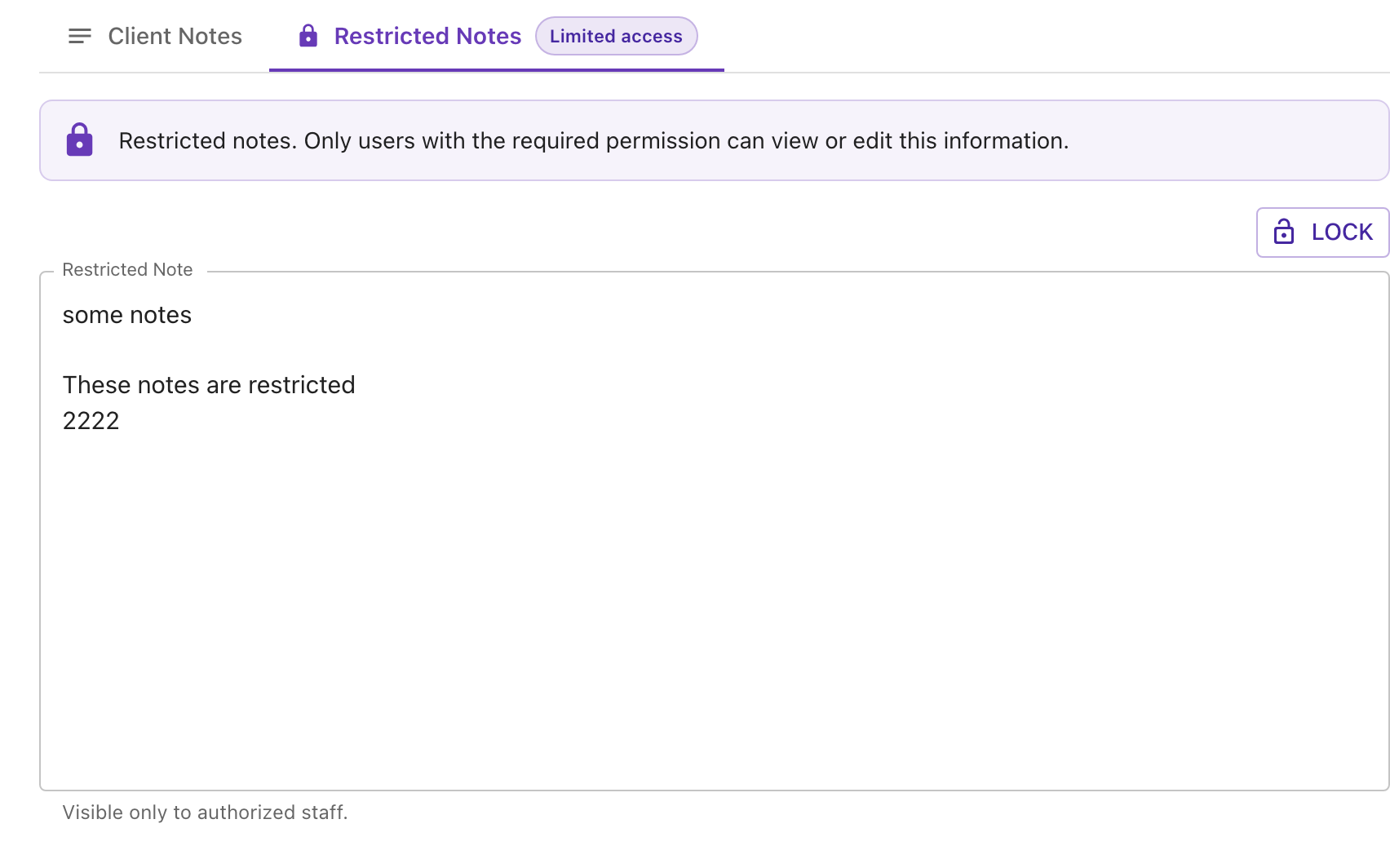
The restricted note saves with the rest of the client record. If you never open the tab, your save leaves any existing restricted note untouched.
Locking It Again
Once you have confirmed your password, restricted notes stay open for a short working period so you are not asked again for every client you look at.
They lock again when any of these happen:
- You click the Lock button above the note.
- You stop using restricted notes for 15 minutes.
- 30 minutes pass since you confirmed your password, even if you have been working the whole time.
- You switch away from the browser tab or close the window.
- You log out.
Once locked, the note is cleared from your screen and you must confirm your password again to reopen it. Clicking Lock and reopening the client will always ask for your password.
If you enter the wrong password five times in a row, restricted notes are locked for 15 minutes on that session. The correct password will not open it during that period.
Where Restricted Notes Do Not Appear
Restricted notes are only ever readable inside the Restricted Notes tab, by a user who holds the privilege and has confirmed their password. They do not appear anywhere else in the system, including:
- the Clients grid and its search
- the reservation grid and the reservation calendar
- the reservation editor and the point of sale window
- exports, printed output, and emails
This holds for privileged users too. The restricted note is not part of the ordinary client record that those screens read.
When and Why to Use This Feature
Example 1: A guest history only managers should see A guest had a serious dispute with staff two seasons ago and management wants a record of what happened, without every seasonal front-desk employee reading it when they check the guest in. Put it in the restricted note and grant the privilege to your managers only.
Example 2: A shared front-desk computer Your front desk is a single shared workstation that stays logged in all day. Password confirmation means that even though the session is open, a passer-by cannot read restricted notes without knowing the password of the staff member who is signed in. Pressing Lock before stepping away closes it immediately.
Example 3: Removing access when someone changes role A staff member moves off the management team. Clear the Restricted Client Note check box on their user account. Their access ends on their next action, and any restricted note already open on their screen locks.