Client Credits
Note
Client Credits are controlled by a per-campground setting and are disabled by default. If you do not see Credits in reservations, payments, the client dialog, or the grids, an admin needs to turn on the Wallet Credit System toggle in Campground Settings.
Client Credits give each guest an in-system credit wallet. Staff can fund the wallet from cash or an online card, view a full credit history, refund a deposit back to its original payment source, and apply credits to charges (automatically after a meter reading, or manually from any reservation).
Credits are tied to the client, not the reservation. A single guest's balance can be used across any of their reservations.
There are exactly two ways credits move in and out of a wallet: a funding event (cash or Stripe) or a reservation payment refund (which converts the refunded payment into wallet credit). There is no manual ledger adjustment. Once credits are in the wallet, staff can either apply them to a charge or refund them back to the original payment source.
How credits work
Every client has a single credit balance broken into three pools:
- Meter Credits: for meter charges only (electricity, water, etc.).
- POS Credits: from point-of-sale transactions.
- Any Credits: flexible credits that can be applied anywhere.
When a credit is applied to a charge, it covers the full charge total including taxes and assigned fees, not just the base amount.
How credits enter and leave the wallet
There are two ways money enters a wallet, and two ways it leaves:
| Direction | Source / destination | Triggered by |
|---|---|---|
| In | Cash drawer or Stripe online card | Add Credits (a real payment) |
| In | A previously paid reservation payment | Refunding that reservation payment (the refund lands in the wallet, not back on the card or in the drawer) |
| Out | Applied to a charge | Apply to Reservation, per-category Use, or the auto-prompt after a meter reading or POS sale |
| Out | Back to the original payment source | Refunding the wallet entry. Stripe deposits refund to the original card; cash deposits record a drawer refund. |
Because there is no manual ledger adjustment, every credit in a wallet is traceable back to either a funding event or a refunded reservation payment.
Credits are held money, not revenue
This is an important accounting distinction that affects how credits should be treated on a campground's books.
When a credit is funded, the money is held on behalf of the client. It is not the campground's revenue yet. A $400 meter deposit funded on May 1 is a liability on the campground's books, not income, in the same way a security deposit at a hotel or a guest-card balance on a cruise ship is held money, not a sale. The campground is acting as a custodian of those funds until the guest uses them or asks for them back.
Revenue is recognized only when the credit is applied to a charge. When a meter reading consumes $42 of that $400 deposit, that $42 becomes revenue, on the date of the reading. The remaining $358 stays on the books as a liability. The wallet is essentially a per-client deferred-revenue account that converts to revenue one charge at a time.
This timing has practical consequences:
- Sales tax (HST / GST / PST): Canadian campgrounds generally do not remit sales tax on a deposit. Tax is collected on the underlying sale when the credit is applied to a charge that carries tax. The wallet preserves this distinction automatically because every credit usage is tied to a specific reservation charge.
- Income recognition: a campground that collects $40,000 in seasonal meter deposits in May is not declaring $40,000 of May revenue. Revenue lands month by month as the deposits get consumed by readings, which often spreads it more evenly across the season.
- Refunds: because credits are held money, refunding a wallet entry back to the original source is a balance-sheet operation, not a revenue reversal. You are returning custodial funds, not undoing a sale.
Consult your accountant
The points above describe how the wallet is structured and the general accounting. Talk to your bookkeeper or accountant about how to map wallet funding, credit usage, and refunds into your specific chart of accounts and how your province handles sales tax on prepaid balances.
Where credits show up
The Credits panel surfaces in three places. The same full management panel appears in the client dialog and the reservation editor, so staff can fund, view, apply, and refund credits from wherever they're already working without having to jump back to the client record.
| Where | What you can do |
|---|---|
| Client dialog | Full Credits panel: total balance, breakdown by pool, Add Credits, View History, per-category Use, per-category Refund. |
| Reservation editor | The same full Credits panel as the client dialog, plus an Apply to Reservation button on the balance card that targets the current reservation's outstanding balance. |
| Add Meter Reading dialog | After saving a reading, if the client has eligible credits, the dialog automatically offers to apply them. |
Exposing the full panel directly on the reservation makes it quick to see what's on file for the guest, see what's left after applying, and add or refund credits without leaving the reservation.
Adding credits to a client
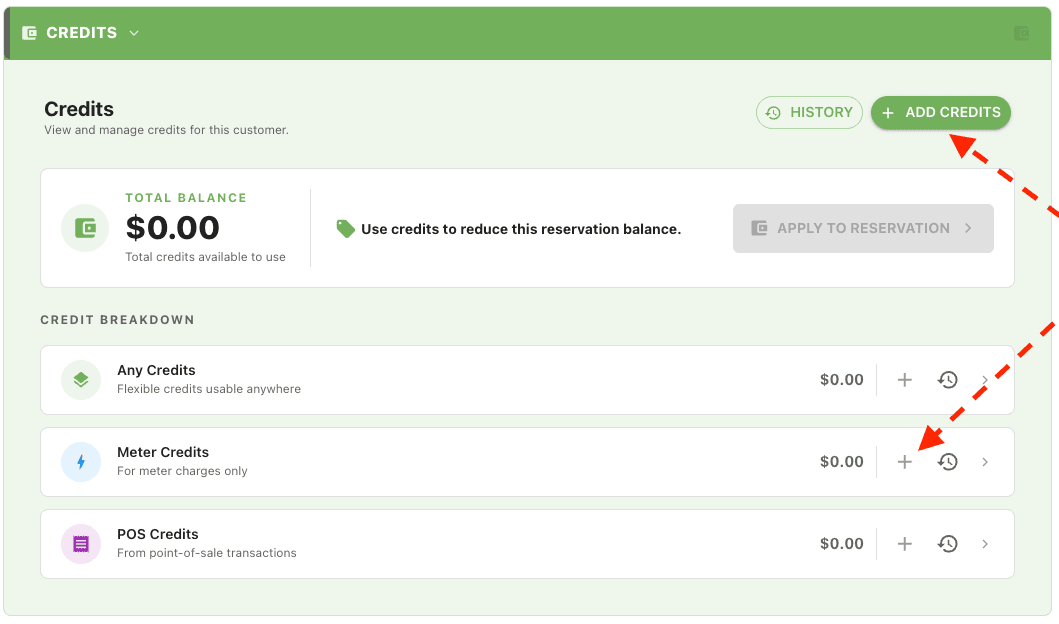
Adding credits funds the client's wallet from a real payment source (cash or Stripe online card). You can do this from either the client dialog or the reservation editor: both surfaces show the same Credits panel with an Add Credits button at the top.
- Open the Credits panel:
- From a client: open the Clients panel, edit the client, and scroll to the Credits section.
- From a reservation: open the reservation editor and click Credits in the side navigation (or scroll to the Credits section).
-
Click Add Credits.
-
In the Add Credits dialog:
- Choose a Category: Meter, POS, or Any.
- Choose a Source: Cash or Stripe (online card).
- Enter the Amount.
-
Click Payment then from the payment dialog, complete the transaction.
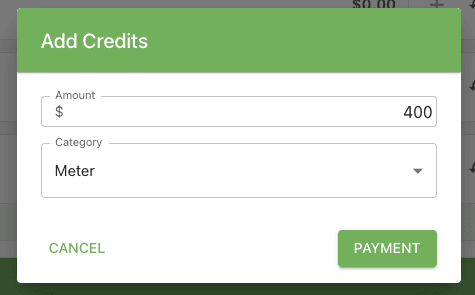
The balance updates immediately and a new Funded entry appears in the history.
Note
Choosing Stripe opens the same online payment flow used everywhere else in the system (saved card on file, or new card entry). Choosing a Manual payment method records the funding without opening a payment gateway.
Viewing credit history
The history shows every change to the client's credit balance: funding entries, usages, and refunds.
- From the Credits section (in either the client dialog or the reservation editor), click View History. You can also click the small history icon on any category row to jump straight to that category's history.
-
The Credits History dialog opens with a filterable, sortable table.
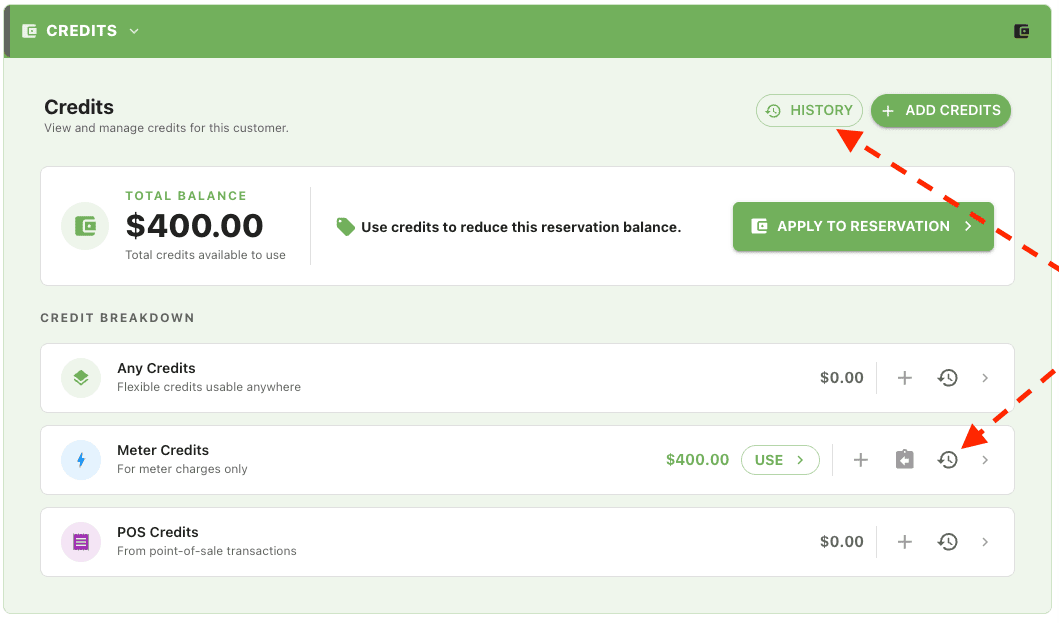
Each row shows the date, type (Fund, Usage, Refund), category (Meter/POS/Any), amount, balance after the change, and a reference (for usages, the reservation or meter reading the credit was applied to).
You can:
- Filter by date range, type, category, or source.
- Search by reference number.
- Export the filtered list to CSV or Print it.
- Drill into any Funded row to refund it (see the next section).
Refunding money back to the guest (the two-step path)
There's no shortcut to refund money directly from a reservation back to a guest's card or wallet. The path always goes through the credit wallet, in two steps. This keeps the audit trail clean and lets staff decide whether the guest gets cash back or just a credit on file.
Step 1: Refund the reservation payment. From the reservation, refund the payment the usual way (see Reservation payment refund). The refunded amount lands in the client's credit wallet as a new Funded entry. No money has moved off the books at this point. The wallet entry remembers which payment source the money came from (Cash, Stripe, etc.).
Step 2: Refund the wallet entry back to the original source. If the guest wants their money back rather than keeping the credit, go to the Credits panel and refund the wallet entry. This is when the money actually leaves: Stripe pushes the refund back to the original card; Cash records a drawer refund and staff hand the cash back.
If the guest is happy keeping the balance as a wallet credit (e.g. they'll be back next season), stop after Step 1. The credit stays in the wallet indefinitely and can be applied to any future charge.
Step 2 in detail: refunding a wallet entry
There are two ways to start a wallet refund from the Credits panel (in the client dialog or the reservation editor):
-
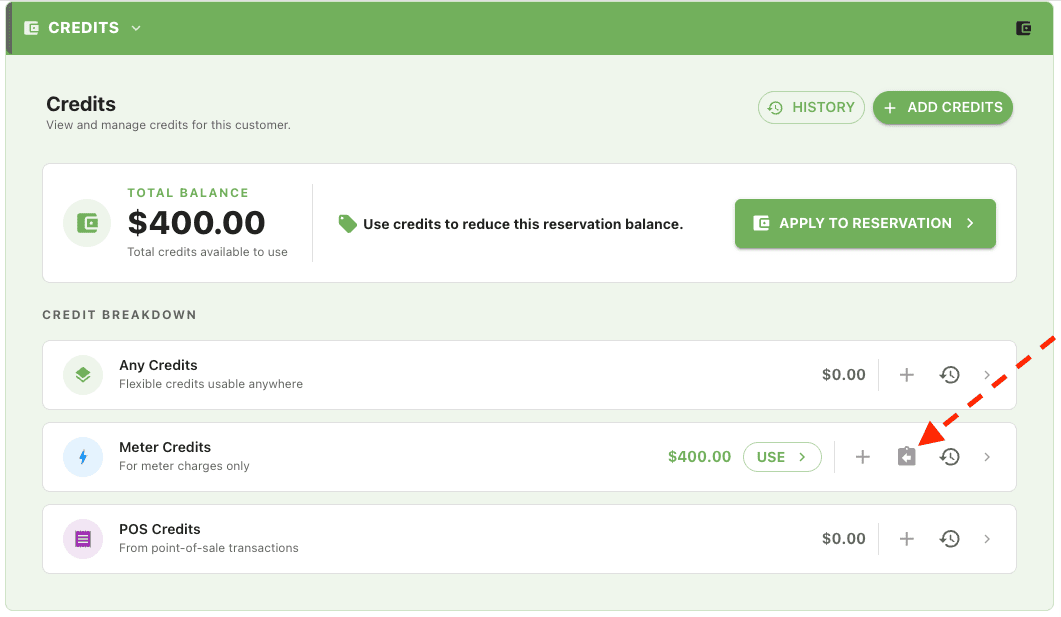
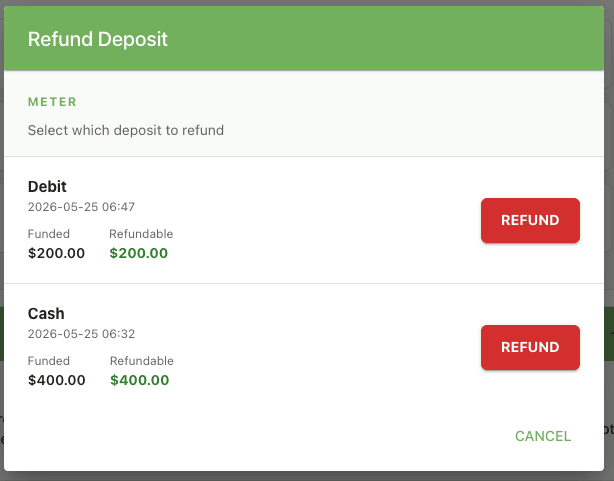
From a category row: click the refund icon on the right side of the Meter, POS, or Any row. If the category has a single refundable deposit, the refund dialog opens directly. If there's more than one, a picker appears.
-
From the history: open View History, find the Fund row you want to refund, and click Refund this deposit on the row.
If the client has more than one matching funding entry in that category, the picker lets you choose which deposit to refund.
Review the refund details (amount, source, original date) and click Apply to confirm.
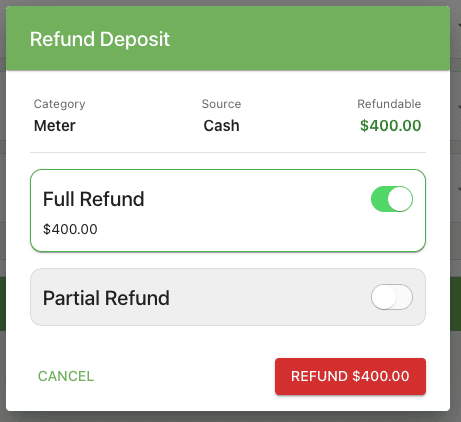
Refund behavior by source:
- Stripe (online card): the refund processes automatically through Stripe back to the card the credits originated from. Stripe handles the rails, so if the card has since expired or been replaced, the issuer returns the funds to the cardholder's account per Stripe's standard refund rules.
- Cash: a cash refund entry is recorded in the ledger and staff hand the cash back from the drawer.
The refunded amount is subtracted from the client's balance, and a Refund row is added to the history with a reference back to the original funding entry.
Applying credits to a meter reading (automatic prompt)
When a meter reading is saved, the dialog automatically swaps to an apply-credits prompt only if the client has a balance in a credit pool that is eligible for the resulting charge. This is the fastest way to use credits and the most common workflow.
When the prompt does and doesn't appear
The prompt triggers based on the eligible pool for the charge being saved:
- Meter charges are eligible for Meter and Any credits. The prompt appears only if
Meter > 0orAny > 0. - POS charges are eligible for POS and Any credits. The prompt appears only if
POS > 0orAny > 0.
If the client has a balance, but only in a pool that doesn't apply to the charge (e.g. POS credits on a meter reading), the dialog closes normally with no prompt. POS-only credits will not block or distract staff during a meter workflow.
- Open the reservation and add a meter reading the usual way.
- Save the reading.
-
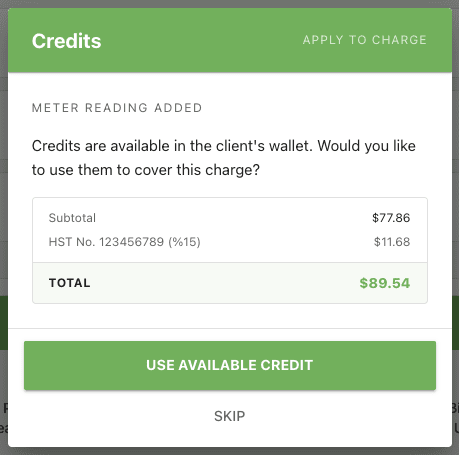
If an eligible pool has a balance, the Add Meter Reading dialog stays open and shows Meter reading added with the message:
Credits are available in your wallet. Would you like to use them to cover this charge?
-
Click Yes, use my credits to continue, or Skip to close the dialog without applying credits.
-
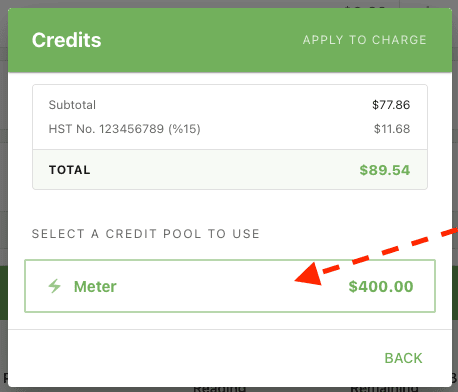
If the client has credits in more than one eligible pool, choose which pool to draw from. Meter charges can use Meter or Any credits.
-
Choose how much to apply:
- Apply Full Amount: covers the lesser of (a) the available balance in the selected pool and (b) the charge total.
- Apply unpaid {category} balance: covers the unpaid balance for that charge category in one click.
- Enter Custom Amount: type a specific amount. The dialog enforces the rules below.
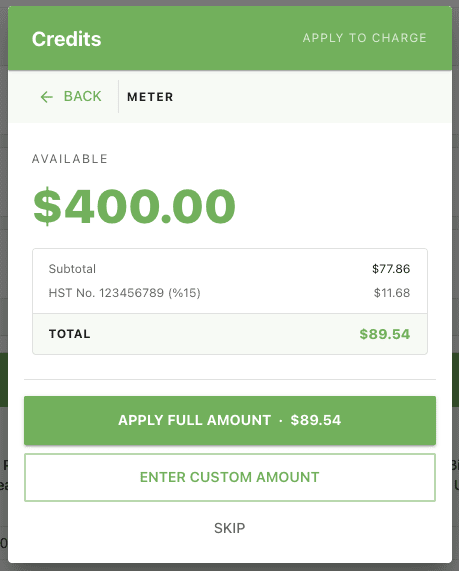
Custom amount rules:
- Must be greater than $0.
- Cannot exceed the available credit balance in the selected pool.
- Cannot exceed the unpaid balance of the charge.
-
Click Apply.
After the credits are applied, the dialog closes and the reservation totals refresh. Behind the scenes, the system creates a new payment on the reservation already tagged as Linked to Meter (see Linking a Payment to a Charge for the manual workflow staff can use to do the same thing without funding credits first), so the payment shows on the meter section subtotal and on the Meter Invoice. The meter charge now shows a Paid via Credits indicator on the charge line, and a Usage row is added to the credits history with a reference back to this meter reading.
The same workflow applies to POS charges when a sale is finalized. The intro title changes to Products & services updated, and POS charges can use POS or Any credits. As with the meter prompt, it only appears when the eligible pool (POS or Any) has a balance: a guest with only Meter credits on file will finalize a POS sale without seeing a prompt. The resulting payment is tagged Linked to POS so it appears in the POS section subtotal.
Applying credits standalone from a reservation
The Credits panel is exposed directly inside the reservation editor so staff can see at a glance what's on file for the guest, how much is left after applying, and apply credits to the reservation's outstanding balance without navigating to the client record.
- Open the reservation.
-
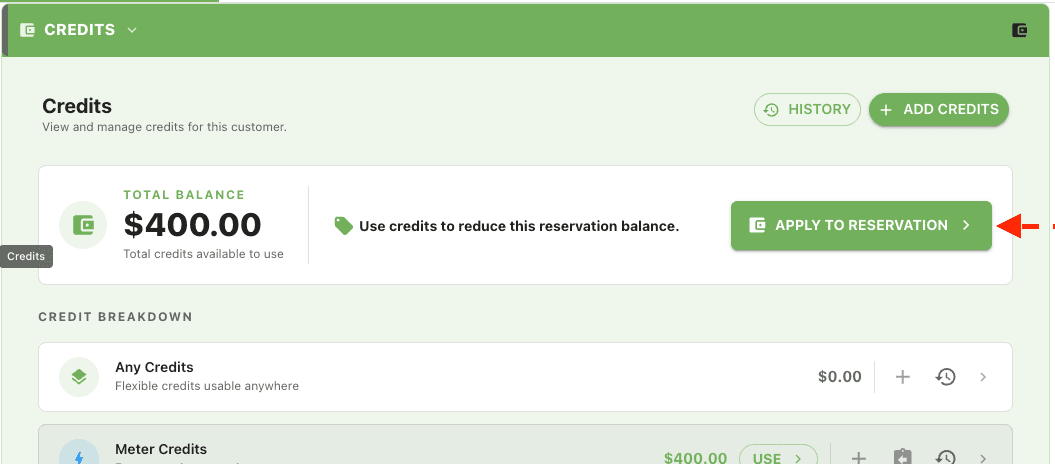
In the side navigation, click Credits (or scroll to the Credits section if your sidebar is collapsed). The panel shows the available balance, the credit breakdown by pool, Add Credits and View History buttons, and an Apply to Reservation call-to-action.
-
Apply credits in one of two ways:
- Apply to Reservation (top right of the balance card): opens the apply-credits prompt with no pool preselected. Pick a pool, choose an amount, and confirm.
- Use (next to each category row): pre-selects that pool (Meter, POS, or Any) and skips straight to the amount step. Useful when you already know which pool to draw from.
- Choose Apply Full Amount, Apply unpaid balance, or Enter Custom Amount, then Apply.
The credits are applied to the reservation's outstanding balance, and the reservation totals refresh. The same buttons in the panel can also be used to fund new credits (Add Credits) or refund a deposit (refund icon on a category row), all without leaving the reservation.
Tooltips and on-screen indicators
A handful of small visual cues help staff scan credit activity quickly:
- Paid via Credits chip appears next to any charge line that was paid with credits.
- Funded from credit wallet tooltip appears on any payment row that came from a credit application, so it's clear at a glance which payments are credit-backed rather than fresh card or cash transactions.
- The Total Balance number at the top of the Credits section is the sum of all three pools.
FAQ
Are credits tied to a reservation or a client?
Credits belong to the client. A balance funded once can be used across any of that client's reservations, current or future.
Can credits cover taxes?
Yes. When credits are applied to a charge, they cover the full charge total, including taxes, not just the base amount.
What happens to a Stripe refund if the original card has expired or been replaced?
Stripe processes the refund through its standard rails. If the card has expired or been replaced, the issuer returns the funds to the cardholder's account per Stripe's normal refund rules. No staff intervention is required.
Do credits expire?
No. Credits stay on a client's wallet indefinitely until they are used or refunded.
Can credits be transferred between clients (e.g. between family members)?
Not directly. If you need to move credits to a different client, refund the wallet entry on the original client (which returns the money to its source) and then fund the destination client with a fresh Add Credits.
Can staff manually adjust a credit balance up or down?
No. There is no manual ledger adjustment. Credits only enter a wallet through Add Credits (a real cash or Stripe payment) or by refunding a reservation payment. Credits only leave a wallet by being applied to a charge or by being refunded to the original payment source. This keeps every dollar in the wallet traceable to a real transaction.
Why are reservation refunds routed through the credit wallet?
It's a two-step path on purpose. Step 1 (refunding the reservation payment) parks the money on the client's wallet. Step 2 (refunding the wallet entry) is what actually returns the money to the original source. This lets staff decide whether the guest gets their money back or keeps the balance on file for a future stay, without having to redo the refund.
What's the difference between Meter, POS, and Any credits?
Meter credits can only be applied to meter charges. POS credits can only be applied to point-of-sale charges. Any credits are flexible and can be applied to either. When a charge can draw from more than one pool, staff are prompted to choose.