Daily Financial Close Report
The Daily Financial Close report reconciles the revenue you earned for a period against the payments you actually collected, and proves the two sides match. It replaces the nightly ritual of comparing a booking report, a card terminal batch, and a cash count by hand.
You can find it under the Reports menu, listed as Daily Financial Close.
Report Period
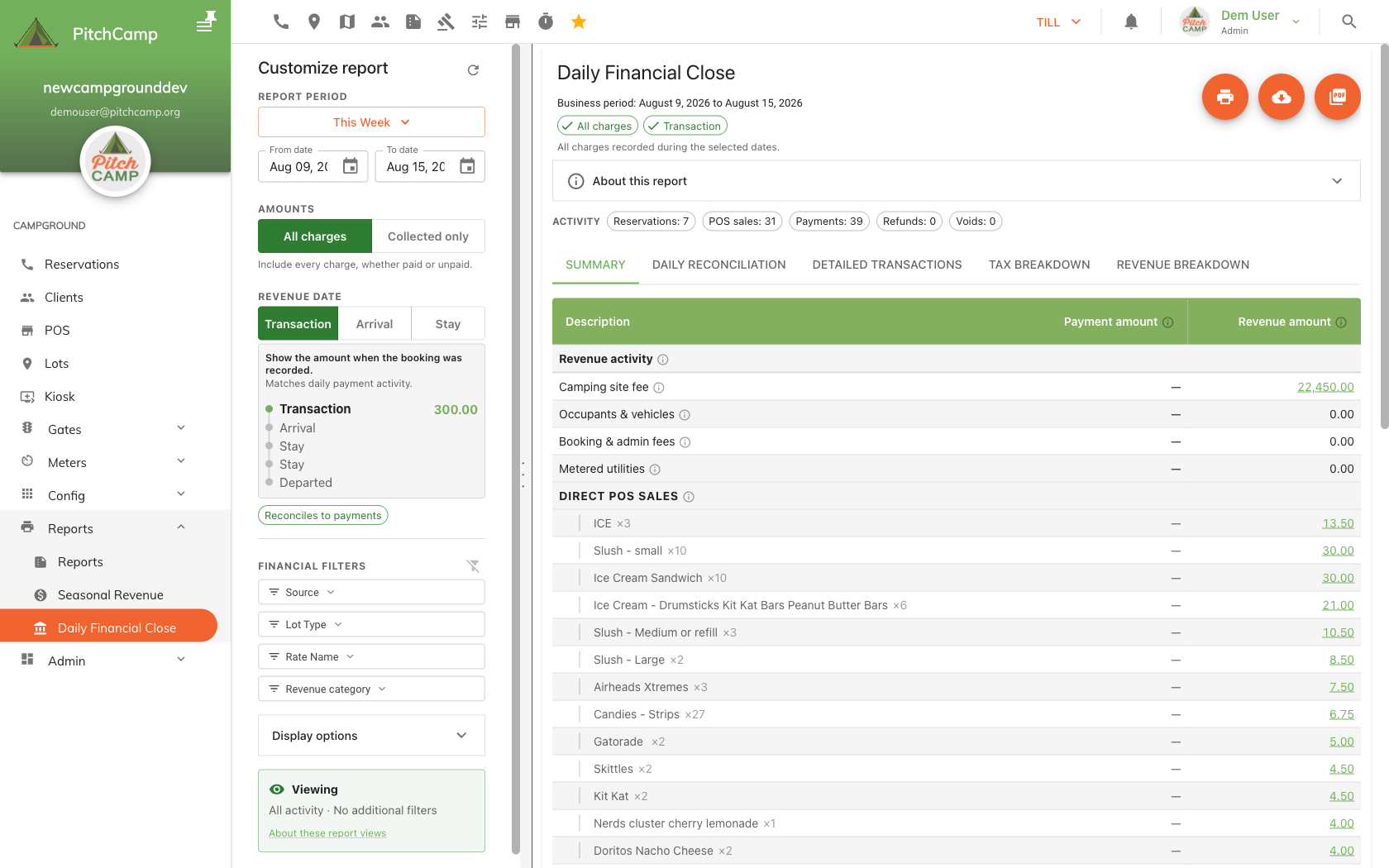
Pick a date range with the Report period dropdown (Today, Yesterday, This Week, Last Week, This Month, Previous Month, or a season) or set From date / To date manually. The report re-runs automatically whenever the dates change, so there is no "generate" button to look for.
Amounts: which charges count
The Amounts toggle controls whether unpaid charges are included:
- All charges: every charge entered in the period, whether it has been paid or not. Use this for revenue recognition, or to hand a period figure to your accountant.
- Collected only: only the portion of each charge that has actually been paid by the report cutoff. Use this for daily cash reconciliation and matching bank deposits.
Both modes still reconcile to a Difference of $0.00; the difference is only in which charges are counted as revenue, not in whether the two sides balance.
Revenue date: when a charge appears
The Revenue date toggle controls which date a charge or payment is placed on:
- Transaction: the amount appears on the date the charge or payment was recorded. This is the only mode that reconciles against payments, and is the one to use for a same-day cash or bank-deposit close.
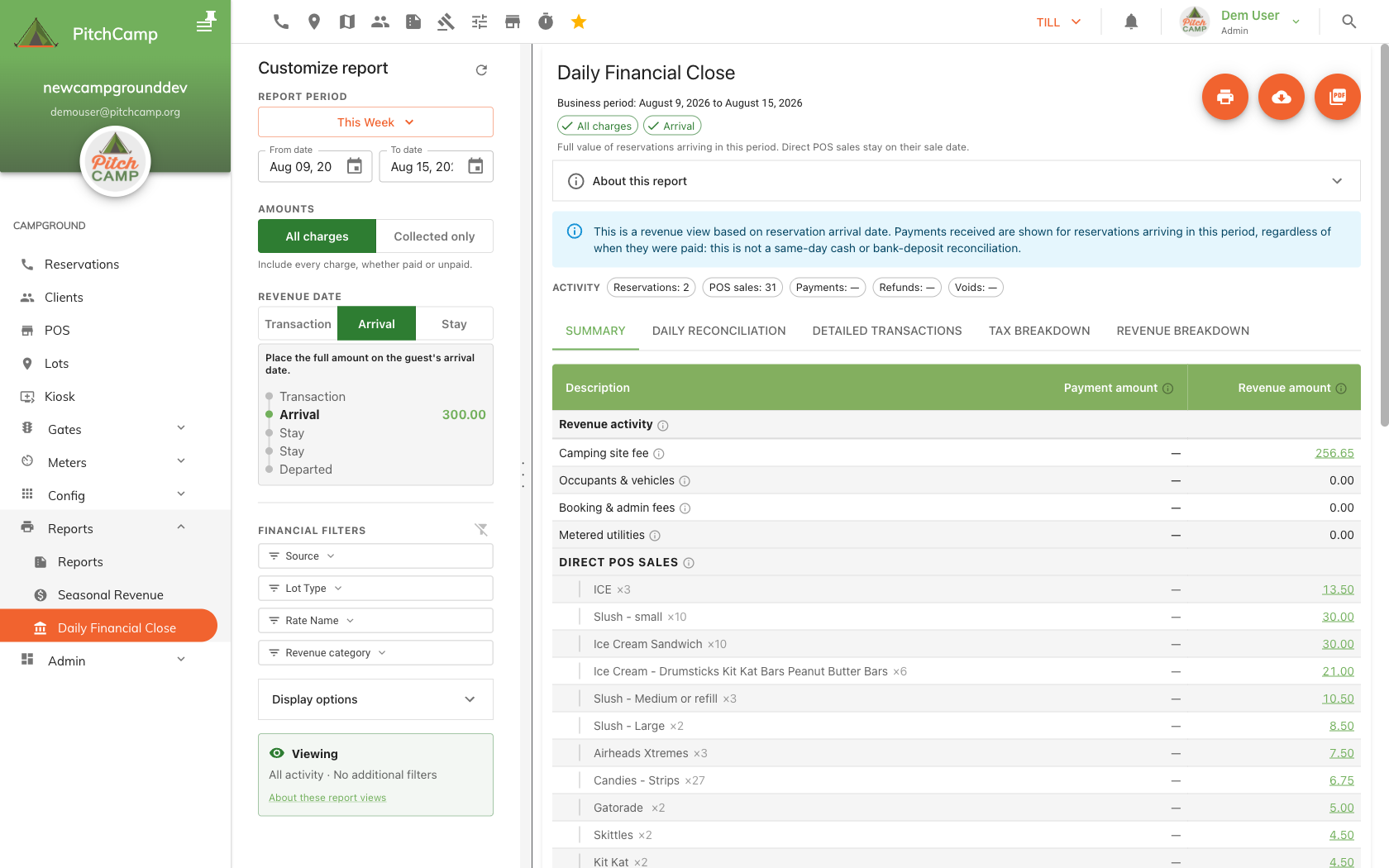
- Arrival: the full value of a reservation is placed on the guest's arrival date. Direct POS sales stay on their sale date. This is a revenue view, not a daily deposit reconciliation, so payment totals are hidden and the report shows a blue banner reminding you of that.
- Stay: the amount is spread evenly across the reservation's occupied nights.
A small diagram under the toggle illustrates where a sample charge lands under each mode.
Financial Filters
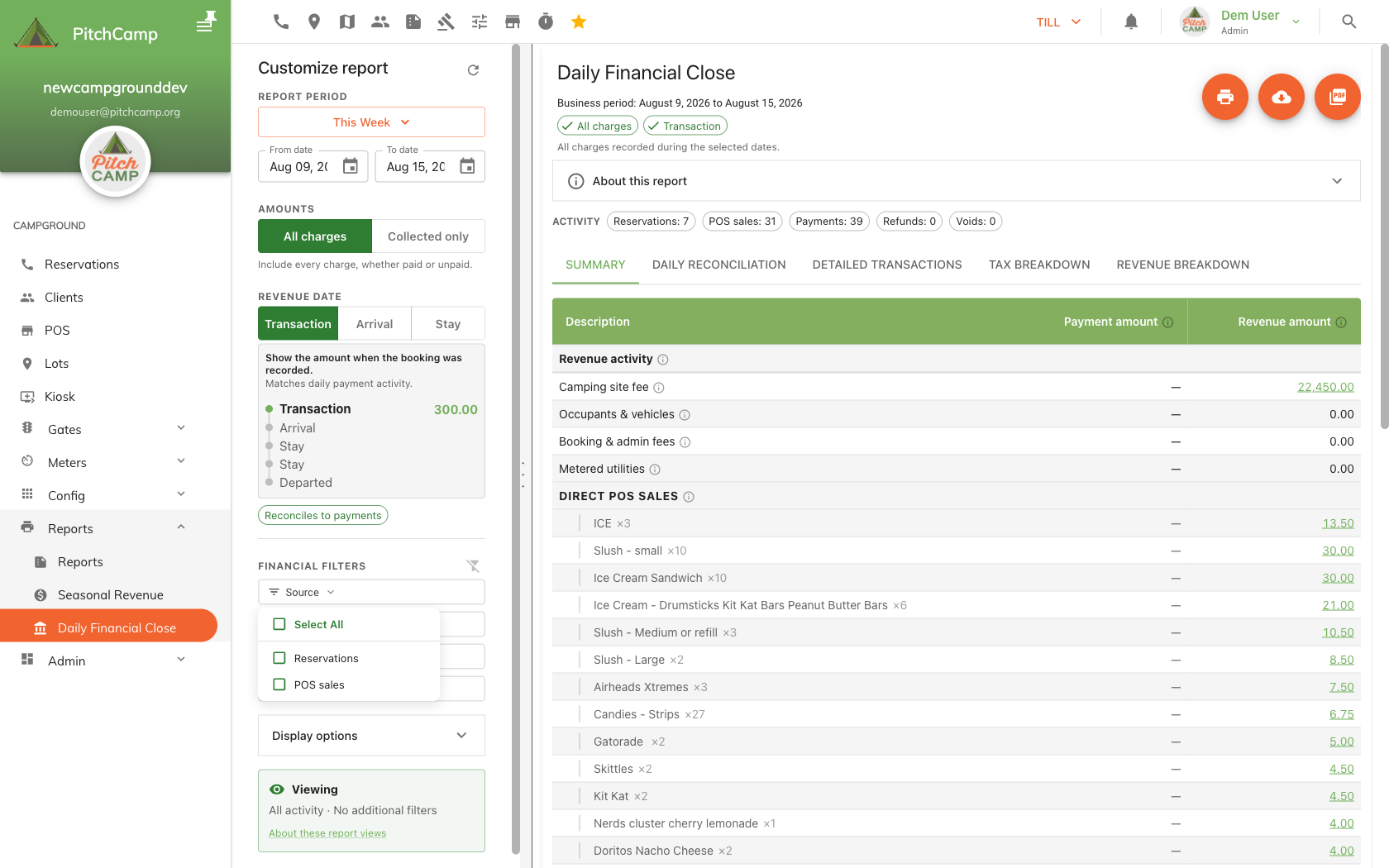
The Financial filters panel narrows the report to a slice of activity, applied in this order:
- Source: Reservations, POS sales, or Other.
- Lot Type: only shown when the Source selection includes reservation-attributed activity.
- Rate Name: the rate/price type charged (e.g. "Seasonal - 30Amp Standard").
- Revenue category: Camping site fee, Occupants and vehicles, Booking and admin fees, Metered utilities, Reservation products and services, Direct POS sales, Other charges, Discounts, Taxes, Property tax, Cancellation fees retained, POS refunds not matched to a return, or Prepayments and overpayments collected.
Note
Applying any financial filter disables the reconciliation bridge: a filtered view is a slice of activity, not a complete day, so it cannot be proven to reconcile to $0.00. A Reset filters chip appears next to the report title whenever a filter is active.
Report Structure: the five tabs
Summary
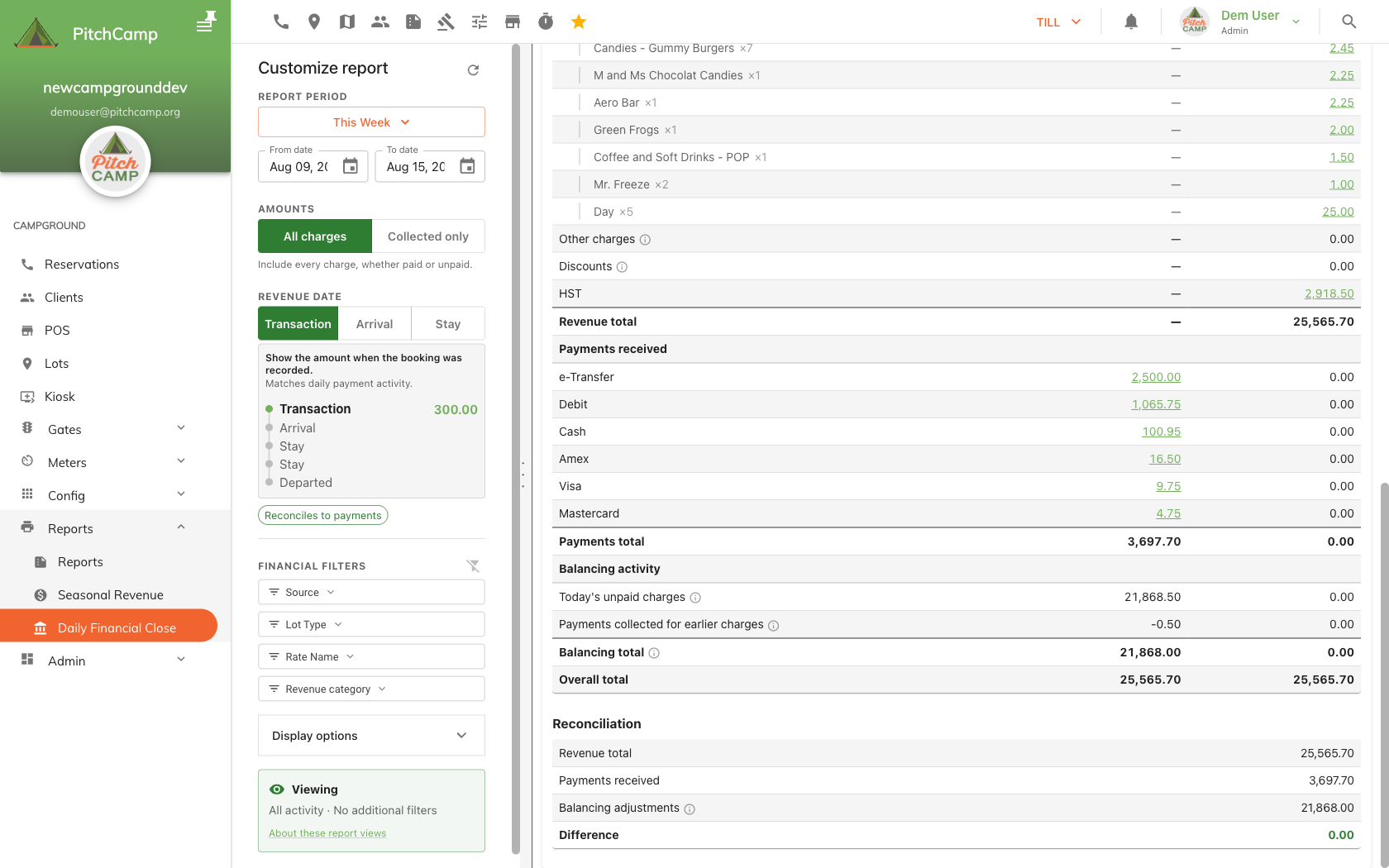
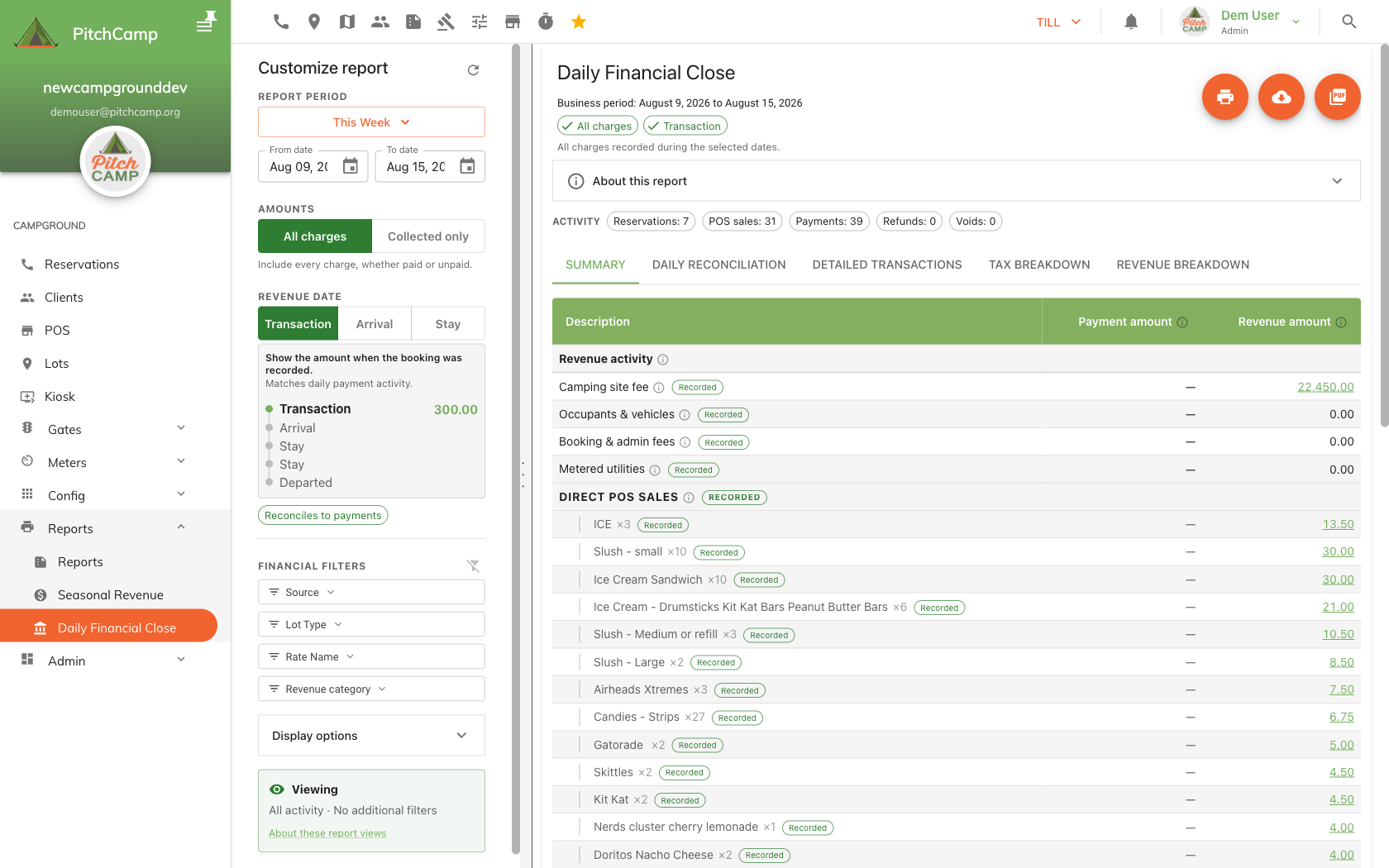
A two-column statement (Payment amount / Revenue amount) broken into Revenue activity, Payments received, and Balancing activity, each with a subtotal, followed by an Overall total. Below it, the Reconciliation block shows Revenue total, Payments received, Balancing adjustments, and the Difference, in green when balanced and red with a warning when it is not.
Daily Reconciliation
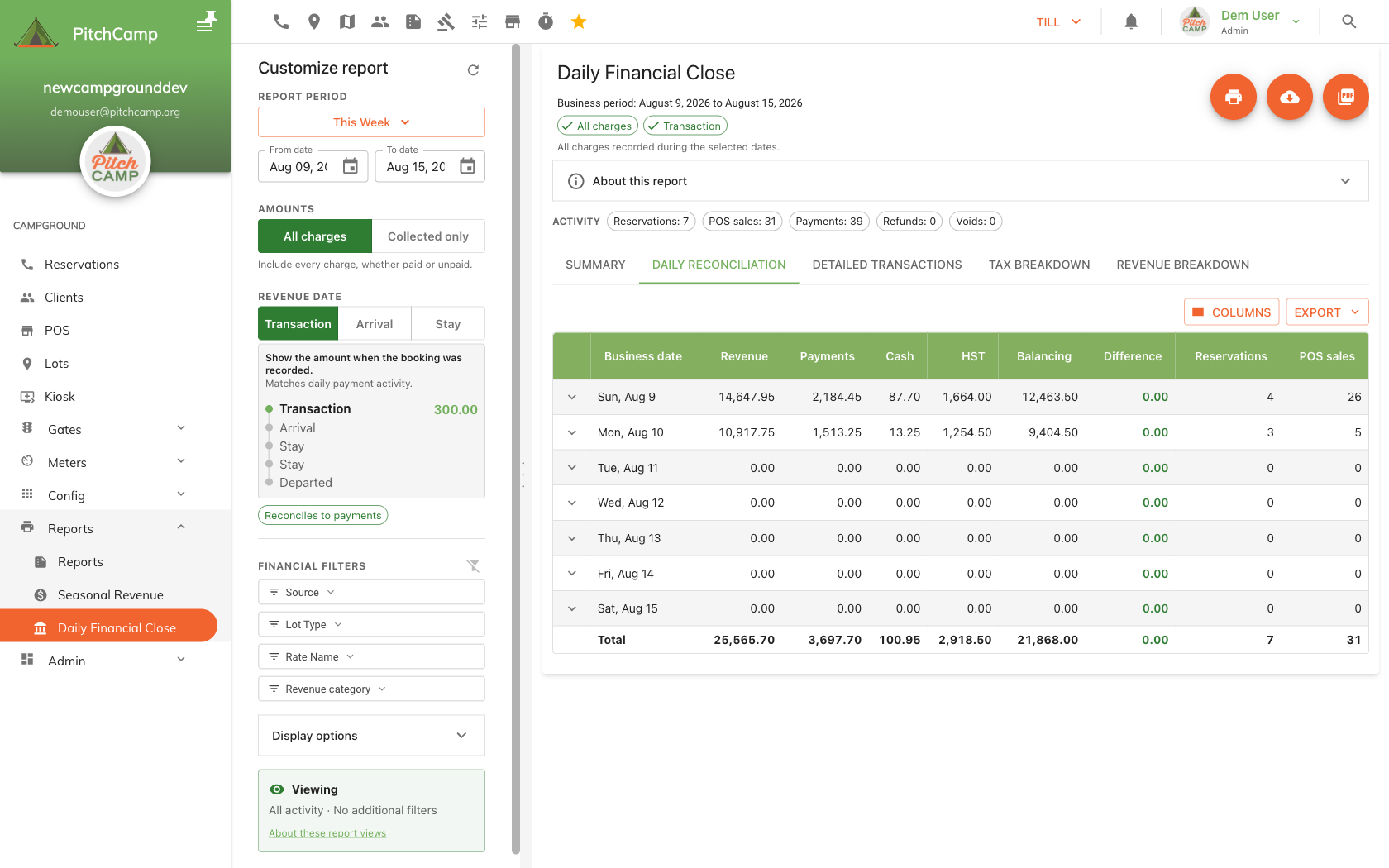
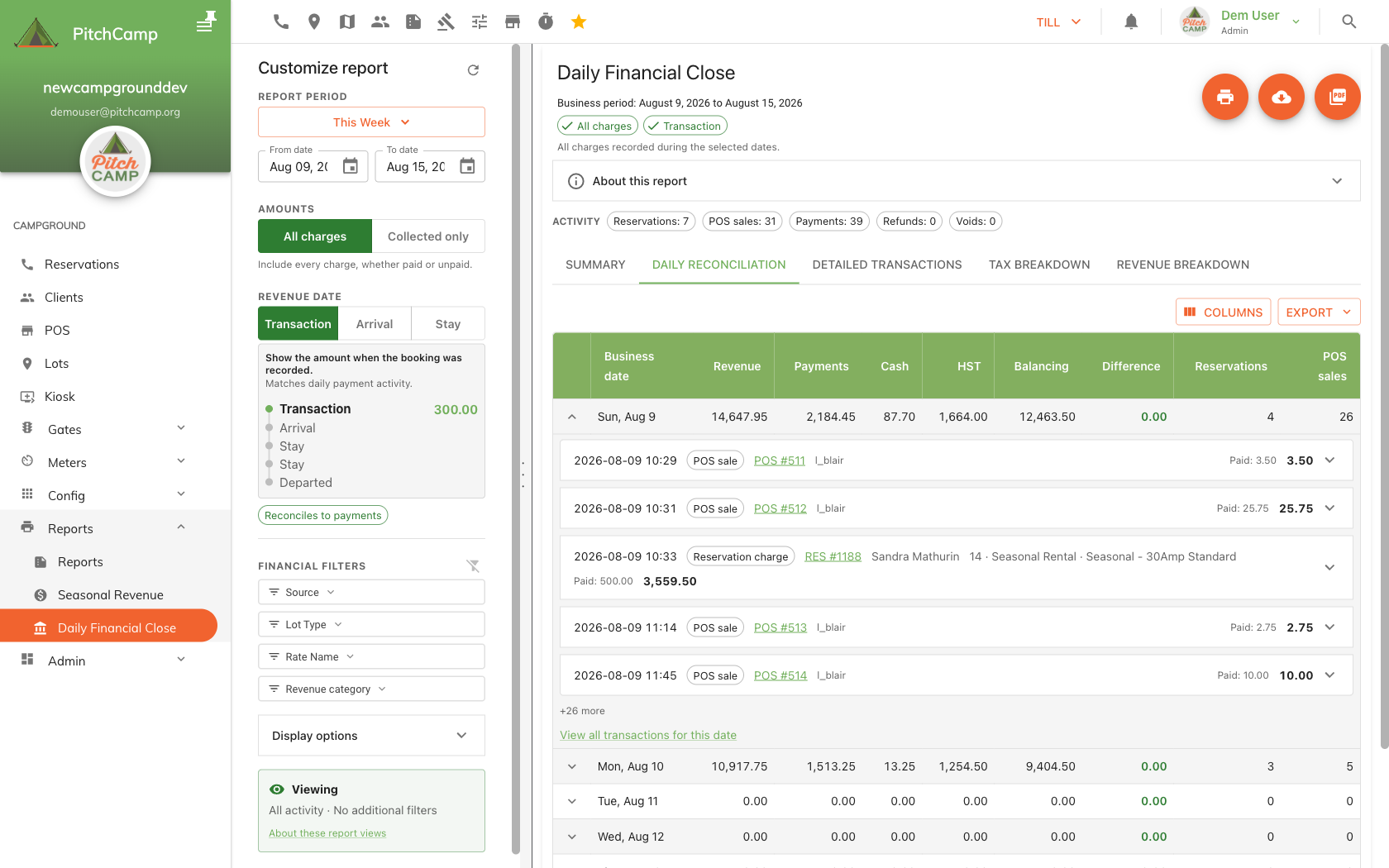
One row per business day, with Revenue, Payments, Cash, tax, and Difference columns, plus reservation and POS sale counts and a Total row. Expand a day to preview its transactions inline, or click Columns to choose which fields appear in the table, exports, and print.
Detailed Transactions
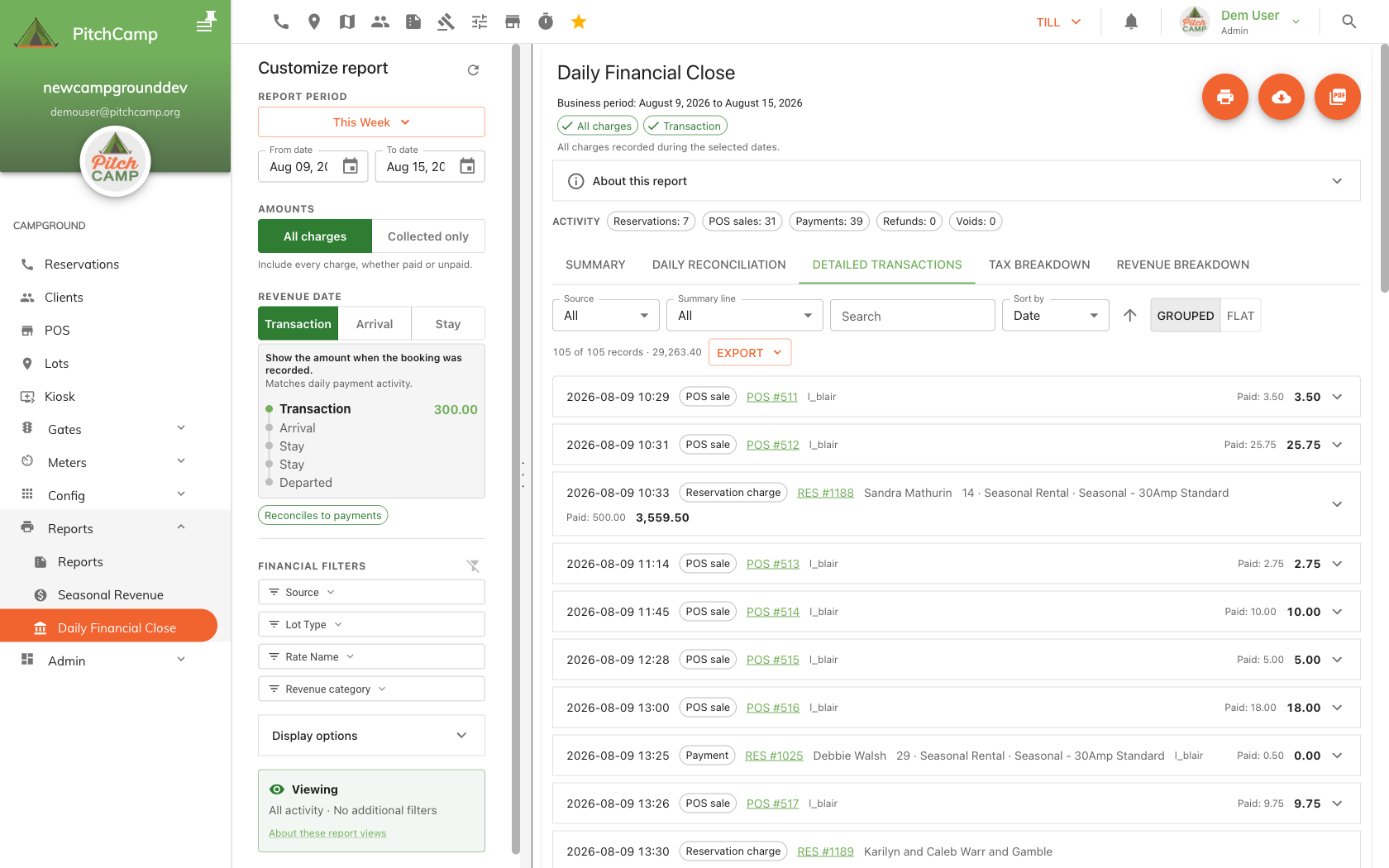
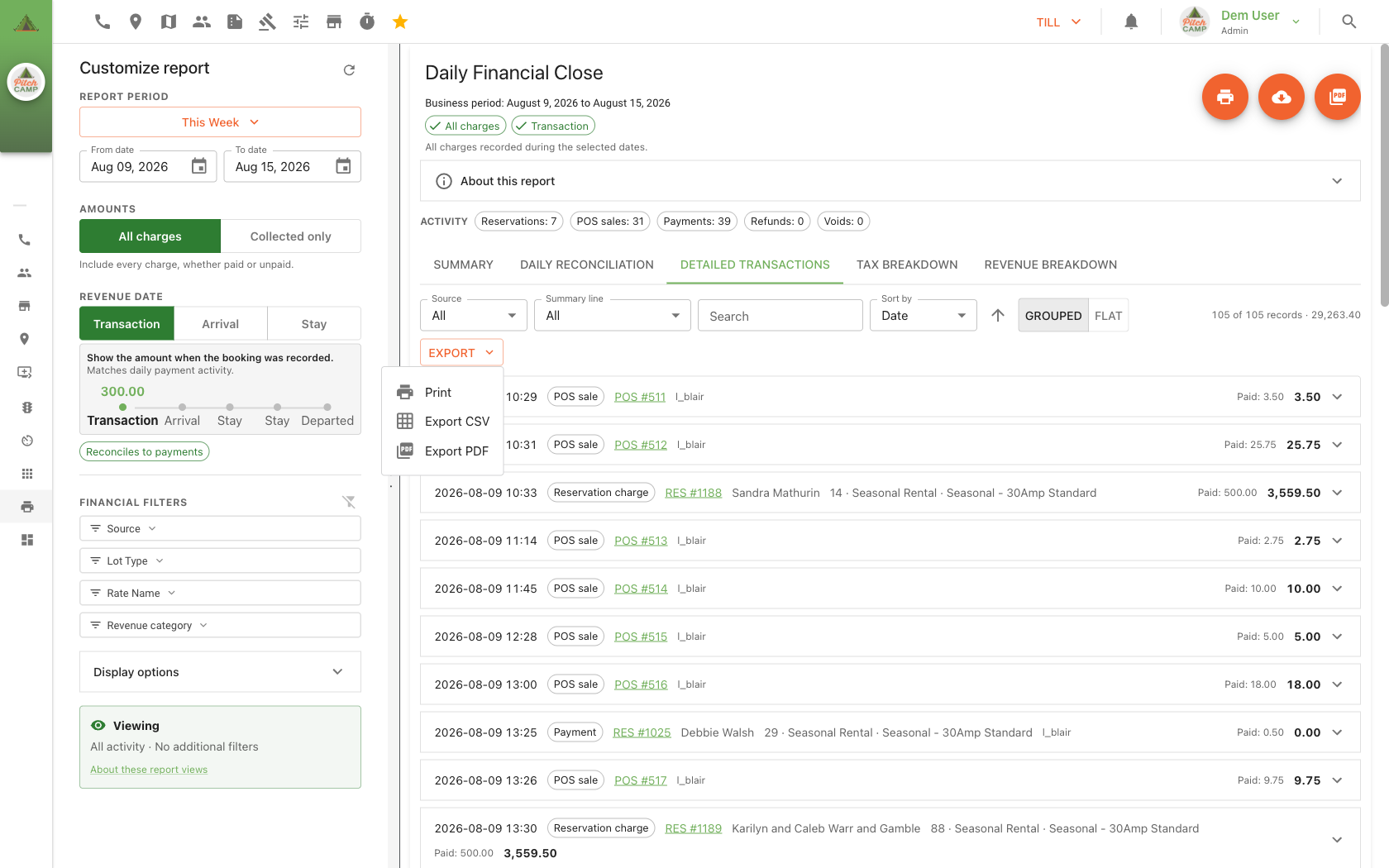
The full underlying ledger, filterable by Source and Summary line, with free-text search and sort. The Grouped view (default) shows one accordion per transaction, split into revenue/tax and payments/refunds/voids; the Flat view lists every row individually.
Tax Breakdown
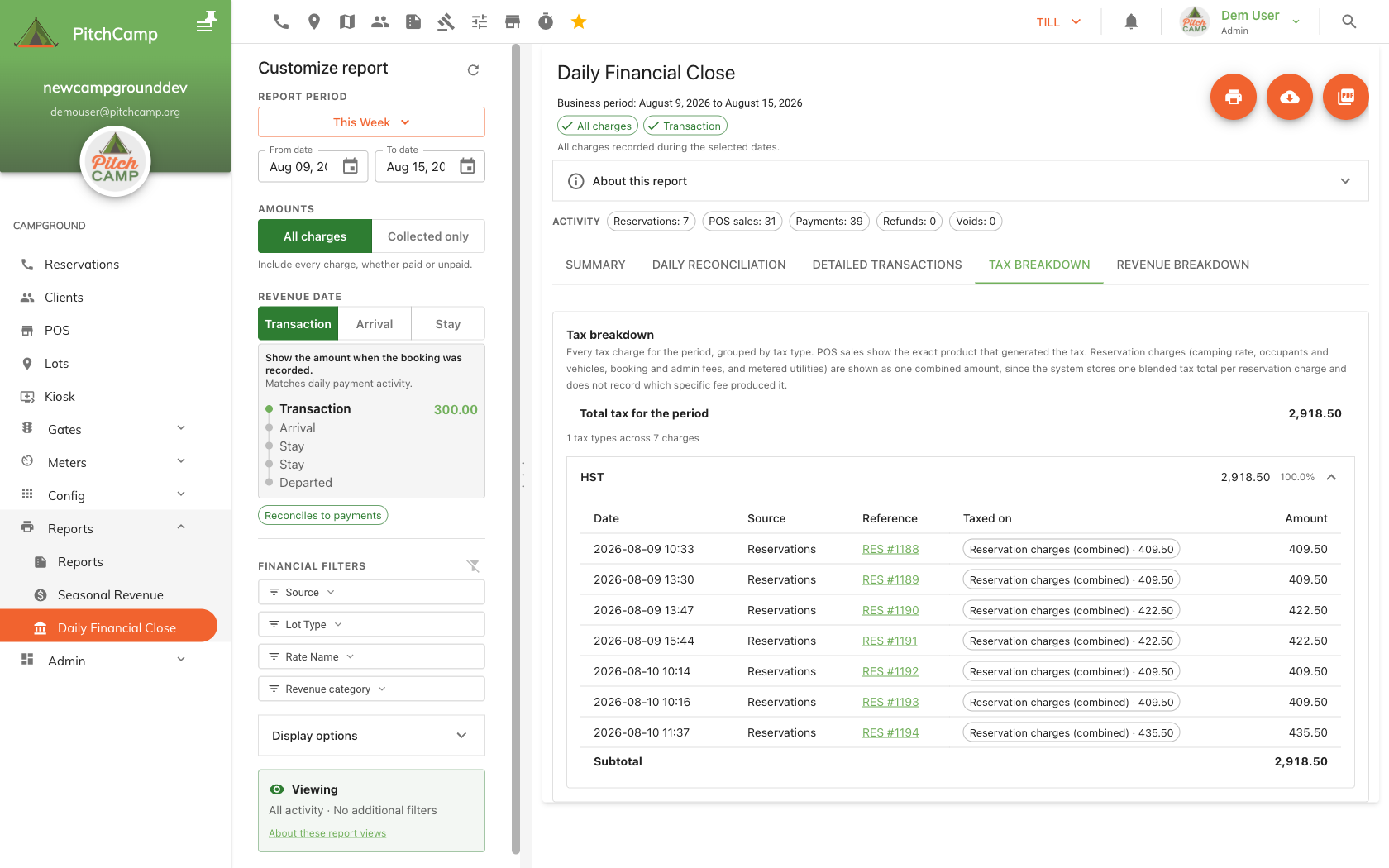
Every tax charge for the period, grouped by tax type (e.g. HST), with a Date/Source/Reference/Taxed on/Amount detail table and subtotal per type.
Revenue Breakdown
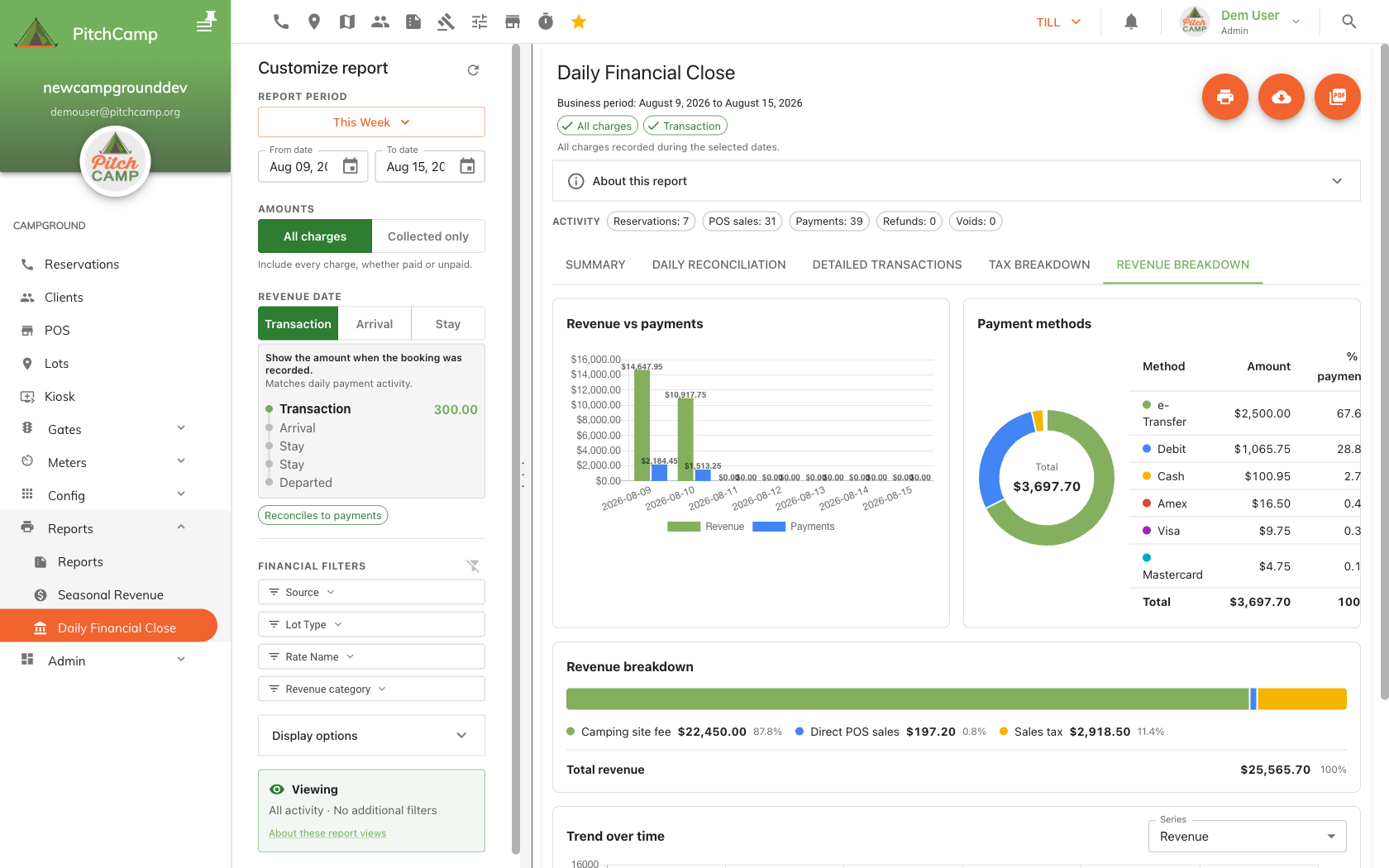
Charts and cards: revenue by category, payment methods, revenue vs. payments by day, reconciliation status, and a trend line with a selectable series.
Exporting each tab
- Print / Download CSV / Download PDF (top-right of the report) always export the Summary statement, whatever tab is currently on screen; Print prints exactly what is rendered, so it follows whichever tab you're viewing.
- The Detailed Transactions and Daily Reconciliation tabs each have their own Export dropdown with Print, Export CSV, and Export PDF, scoped to that tab's table (and, on Daily Reconciliation, respecting your column selection).
- Summary, Tax Breakdown, and Revenue Breakdown rely on the report-level Print/CSV/PDF buttons; they have no separate export control of their own.
Turn on Show calculation details (under Display options) to add a small provenance chip to each revenue line, showing whether it was directly recorded, calculated, or an adjustment. The same chip text carries into PDF exports when the toggle is on.
Cross-Referencing: drilling into the source
Every reference on the report is a live link back to the record it came from, so you can verify a total without re-keying anything:
- Reservation and POS references (e.g.
RES #1188,POS #511) open the actual reservation or point-of-sale receipt in a new browser tab, wherever they appear: the Detailed Transactions ledger, the Tax Breakdown detail table, or a Daily Reconciliation day preview. - On the Summary tab, click any non-zero revenue or payment amount to jump straight to the Detailed Transactions tab, pre-filtered to that line.
- On the Daily Reconciliation tab, expand a day and use View all transactions for this date to jump to Detailed Transactions narrowed to that single business day; a banner lets you restore the original range afterward.
Balancing/adjustment lines (Today's unpaid charges, Payments collected for earlier charges, and similar) are intentionally not clickable: they are computed bridges between revenue and payments, not stored records, so there is no single transaction to link to.