Occupants & Details (Animals, Vehicles)
Occupants & Details is the single scrolling panel used to set occupant counts and, when a reservation has any, fill in the details for each animal and vehicle, all in one place with no separate tab to open. It appears in the same shape in two places:
- Step 4 (Occupants) of the New Reservation wizard.
- The Occupants section of the Reservation Edit dialog.
Occupant counts
At the top is a counts card: adults, children, animals, and vehicles. Each has its own stepper, and each is capped independently based on the lot's accommodation settings (Max Adults, Max Children, Max Animals, Max Vehicles). Going over a lot's cap is blocked.
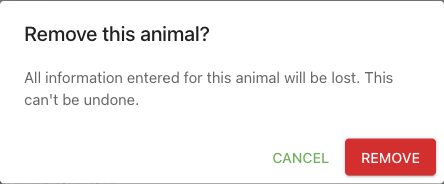
Reducing the animal or vehicle count removes the corresponding entry below, but only after you confirm if there's something to lose: if the animal or vehicle about to be dropped (always the last one) already has details filled in, a confirmation dialog asks first. An empty trailing entry with nothing filled in is still removed immediately, with no prompt.
Animal & Vehicle Details
As soon as the animal or vehicle count is above zero, a Details Summary card appears directly below the counts, no extra click or tab needed. Vehicles always get one; animals only do when the lot actually has fields configured for them, described in Configuring what to collect. A lot with zero animal fields configured means exactly that: animals can still be counted, there's just nothing further to ask about them.
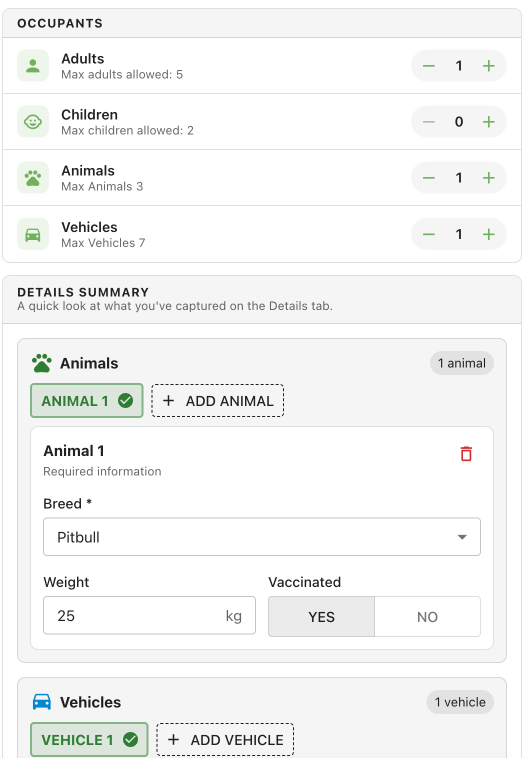
- One small button per animal, one per vehicle ("Animal 1", "Animal 2", and so on), colored green with a checkmark once every required field on it is filled in, or amber with a warning triangle while something required is still missing. Clicking one shows that item's fields below; only one item's fields are on screen at a time.
- Add Animal / Add Vehicle adds another entry and switches straight to it, up to the lot's Max Animals / Max Vehicles cap. Once the cap is reached, the button disables and a message states the limit.
- A trash icon on the open item removes just that one. Same rule as the counters above: if it has details filled in, a confirmation dialog asks first; an empty one is removed immediately.
- A "needs information" banner stays pinned to the bottom of the card whenever any animal or vehicle is still missing a required field, with a Review button that jumps straight to the first incomplete one and puts the cursor in its first empty required field. It disappears once everything required is filled in.
- Vehicle fields are fixed: License Plate, Make, Model, Color. Animal fields are whatever the lot's Animal Fields Setup defines: plain text, a dropdown (one choice or several), a number with a unit (e.g. weight in kg), a date, a yes/no toggle, or a multi-line text area, depending on how each was configured.
Every field here is optional to fill in right away unless the lot's configuration marks it required. You can leave any of it blank, save the reservation, and come back to it later, nothing here blocks saving.
When a field's setup changes after a reservation already answered it
A lot's animal fields can be edited at any time from Lots > Accommodations, even after reservations already have answers stored for them. What happens to an affected answer depends on whether its field still exists:
Retyped, or a dropdown option removed (the field still exists): the answer isn't hidden or silently reformatted to fit. It still shows, with a small warning icon and an explanation:
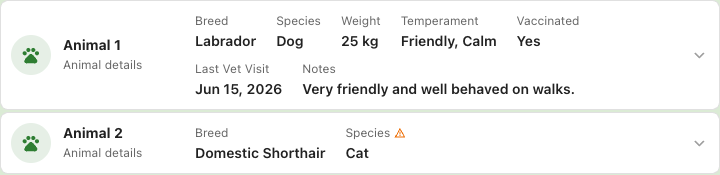
- On the reservation's summary/review view, the affected value shows next to its label with the warning icon.
- In the Details Summary card above, that same field shows read-only instead of being loaded into a live control it no longer matches, for example a text box that would otherwise show a value from an option list that no longer exists. An Enter a new answer link swaps in a normal, empty control for that one field, so it can be answered fresh under the field's current setup.
Deleted entirely (the field no longer exists at all): there's no live control left to show the answer in, so it moves to its own Historical Answers card underneath the animal or vehicle's other fields, clearly marked as no longer part of the lot's setup and not editable.
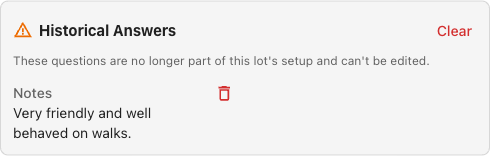
- Each historical answer has its own delete icon, and a Clear button in the card's header removes all of them for that animal or vehicle at once. Either asks for confirmation first. Deleting a historical answer is permanent.
- Leaving historical answers in place doesn't block or change anything else, they're purely informational until you choose to clear them.
This is informational only otherwise: the original answer is preserved unless you deliberately clear it, and editing an unaffected field on the same animal or vehicle still works normally.
Where the counts and details show up
- New Reservation wizard: Occupants & Details is Step 4, between Client and Add-ons. Advancing past it does not require any animal or vehicle detail to be filled in, only that at least one adult is selected and the adult/children counts are within the lot's caps.
- Reservation Edit dialog: the same counts and details live under the Occupants section, so they can be adjusted after a reservation already exists.