Campground Online Check-In: How Guests Check Themselves In From an Email Link
Quick answer: Online check-in lets a guest mark their own arrival with one tap, from a link in an email or from their online account, and the reservation becomes Checked In exactly as if your staff had done it. You decide when check-in opens and closes, what happens if the guest still owes a balance, and which sites allow it. There is no app to download and, from the emailed link, no login. In PitchCamp this is called Self Check-in, and it stays off until you turn it on.
It is the Friday of the Victoria Day long weekend, 5:40 in the afternoon. Six trailers are idling at the gate. Two of those guests are on the phone trying to remember which site they booked, one is asking whether the lake is open for swimming yet, and the person at the front desk is still looking up the first reservation.
Nothing on that list needed a person. Confirming that a guest has arrived, telling them their site number, pointing them toward it: that is information the guest could have had on their phone before they reached your road.
Online check-in moves exactly those jobs off the desk. It does not replace your staff. It stops asking them to do the part of check-in that is just a handoff of information.
Key takeaways
- Online check-in is a one-tap arrival the guest does themselves. The reservation moves to Checked In, the same status your staff would have set.
- Guests have two ways in. A link in an email, with no login, or the Check in now button on the Reservations page of their online account.
- You control the window. Check-in can open the day of, 1, 2 or 3 days before, 1 week before, or a custom number of days, and close at the end of arrival day, at checkout, or some days after arrival.
- Your campground's clock is the one that counts. The window runs on your time zone, not the guest's, which matters in a country with six of them.
- You choose how a balance is handled. Ignore it, ask the guest to pay (the default), or require payment before check-in.
- You choose which sites allow it. Switch it off for the cabin where you hand over a key, leave it on for everything else, one site at a time or in bulk.
- You decide what the guest sees afterward. Their site, directions to it, your contact details, an optional gate code, and any add-ons still waiting for them.
- The emailed link works like a key. Anyone who opens it can check that reservation in, so leave the gate code off if that worries you.
- It is off until you switch it on. Staff can always check a guest in from the reservation, exactly as before.
- The public help pages we found for other campground platforms describe a fixed pattern for online check-in. We have not found one where the operator sets the window in days, the balance rule and the sites independently.
What is online check-in at a campground?
Online check-in is a way for a guest to tell your campground they have arrived, from their own phone, without stopping at the office. They open a link or log in to their account, check the site and dates, and tap Check in now. The reservation becomes Checked In and the guest sees what they need next.
It is a different thing from the other two arrival tools we have written about. A kiosk and gate access system works at your property. Digital waivers collect a signature. Online check-in is the confirmation step: the guest says "I am here" and your system records it. It pairs well with both, and waivers stay a separate step.
What online check-in changes at the front desk
Three jobs stop being front-desk jobs:
Confirming that someone has arrived. Without online check-in, the only way your system learns a guest is on the property is that someone at the desk changes the status. With it, the guest does that themselves, and a bell notification tells your team.
Telling the guest where to go. The site number and the directions to it show up on the confirmation screen the moment the guest checks in, instead of being read out across a counter.
Handing over a gate code. If you choose to share it, the code appears on that same screen, and only during the guest's stay.
That leaves the desk free for the questions that actually need a person: the guest who wants a different site, the one with a broken hitch, the family who have never camped before.
How online check-in works in PitchCamp
Turn on a channel
Everything lives in one place: Campground Settings, then Online Campground Settings, then Self check-in. The first card is Channels, and nothing changes for your guests until you switch one on.
| Channel | How the guest checks in | What you do |
|---|---|---|
| Emailed link | Taps a link in an email. No login. | Add the link to an email you already send. |
| Guest account | Logs in to your booking site and opens Reservations. | Nothing, as long as the reservation is linked to their online account. |
A Notify staff switch, on by default, adds a bell notification each time a guest checks in. Choose Online Self Check-ins in the notification filter to see only those.
Decide when check-in opens and closes
You pick how many days before arrival check-in opens (the day of, 1, 2 or 3 days, 1 week, or a custom number) and the earliest time that day: the start of the day, the reservation's own check-in time, or a fixed time. Then you pick when it closes: the end of the arrival day, checkout, or some days after arrival.
Both times run on your campground's time zone, not the guest's. A guest in Ontario checking in to your New Brunswick campground sees a window on Atlantic time, one hour ahead of Toronto, so "opens at 3:00 PM" means 3:00 PM at your gate.
Here is what two common setups look like for a guest who arrives Friday at 3:00 PM and leaves Monday at 11:00 AM:
| Opens | Earliest time | Closes | The guest can check in |
|---|---|---|---|
| Day of | The reservation's check-in time | Checkout | Fri 3:00 PM to Mon 11:00 AM |
| 1 day before | Start of the day | The end of the arrival day | Thu 12:00 AM to Fri 11:59 PM |
If the reservation dates change, the window moves with them.
Decide what happens when a balance is due
This is the setting most operators think about longest, and it has three answers:
| Choice | What the guest experiences |
|---|---|
| Ignore the balance | Can check in whether or not they owe money. |
| Ask guests to pay (the default) | Sees a reminder and can still check in. Gets a Pay balance button if online payments are on. |
| Must be paid first | Cannot check in until paid. The main button becomes Pay $X to check in. |
Must be paid first needs Online Payments to be on, because the guest needs a way to pay from their phone. The emailed link cannot take a payment itself: the guest pays from their account or with Pay Now, then opens the link again.
Choose which sites allow it
By default every site allows online check-in. To limit it, pick specific sites in the Who can check in card, for example to leave out cabins where you hand over a key, or seasonal sites. You can also turn it on or off from the Lots page, which has a Self Check-in column and a Bulk Update option for changing many sites at once.
Whatever you choose, a guest can only check in on a real guest stay, not a blocked or OTA-synced one, that is still Not Arrived, not cancelled or expired, and inside your window.
Decide what the guest sees afterward
The After check-in card has five options. Site, Directions, Contact details and Add-ons are on by default, and Gate code is off. The gate code, if you switch it on, shows only during the guest's stay. Add-ons is the list of items such as firewood that the guest bought with their stay. Items your staff have already handed over stay on the list, marked as fulfilled, and a stay with no add-ons shows no list. Untick Add-ons if you would rather not show it.
Put the link in an email they already get
For the emailed-link channel, the link goes into an email you already send, usually your booking confirmation or your arrival reminder. You open the template under Config > Emails, click in the message where the link should go, and click Self Check-in Link in the Auto Populate Fields panel under the message box. That adds a field that PitchCamp swaps for a personal link in every email.
This is how it looks to the guest. The arrow points to the link, under the welcome message of a confirmation email:
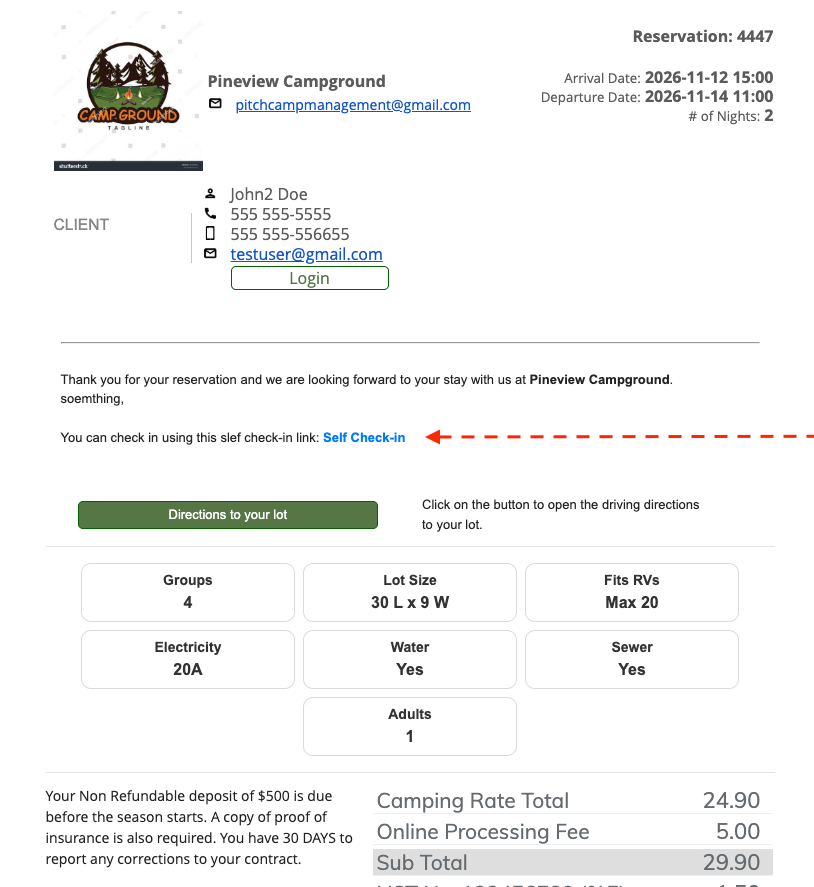
Two details are worth knowing:
- The link is personal. Every guest gets their own, for their own reservation.
- A confirmation can carry it early. The link is included even when check-in has not opened yet. The guest sees "Check-in opens Fri 3:00 PM" until your window opens, so you do not need a separate email for it. PitchCamp leaves the link out when it cannot work, for example when the reservation is cancelled, check-in has closed or the site is not allowed, so a guest never gets a broken link.
The exact steps, including how to test the email before guests see it, are in the Self Check-in setup guide.
What your staff see
With Notify staff on, each check-in adds a Guest Self Check-in notification to the bell with the guest name, reservation, site and which channel they used. Click it to open the reservation. If you also want the guest to receive a confirmation after they check in, you can set up a send rule that emails them once, the moment they tap, and not when a staff member does it for them.
Online check-in vs. the front desk
| Front desk only | Online check-in on | |
|---|---|---|
| Who marks the guest as arrived | Your staff, one at a time | The guest, from their phone |
| How a guest learns their site | Told at the desk | On screen the moment they check in |
| Gate code | Handed over or read out | Shown on screen, only during the stay, if you allow it |
| A guest who arrives after hours | Calls ahead or waits | Checks in and gets their site on their own |
| A guest who owes a balance | Staff chase it at the desk | Your rule decides: ignore it, ask, or require payment first |
| Setup effort | None | One settings page and one line in an email |
| If a guest prefers a person | Walk up to the desk | Same, the desk is still there |
The point is not to take the desk away. It is to let the guests who want to skip it skip it.
Three decisions to make before you switch it on
Which email carries the link? Your arrival reminder is the natural home because it reaches guests as their stay gets close. Your booking confirmation works too, since the link starts working when your window opens.
Do you share the gate code? The emailed link works like a key: anyone who opens it can check that reservation in and see everything you chose to share. If you would not be comfortable with a forwarded email revealing the gate code, leave Gate code off and let the code come through your usual route.
What do you do about balances? If most of your guests pay in full online, Ask guests to pay is a gentle default. If you have a lot of pay-at-arrival bookings, think about whether Must be paid first is worth the friction, remembering that it needs Online Payments.
Where this sits against other campground software
Public help pages for campground platforms describe online check-in in a handful of familiar patterns. Campspot's help pages describe an email sent about 24 hours before arrival, with a link to start online check-in, available once the balance is paid and the terms are accepted. CampLife's mobile check-in lets a guest confirm arrival and see directions to their site, and its gate integration can send a code or QR pass on arrival day. Both are real, working approaches.
The details that are different in PitchCamp are about who gets to decide. The operator sets the window in days and the earliest time, rather than working to a fixed lead time. The operator chooses between ignoring, asking about and requiring a balance, rather than having one rule apply to everyone. And the operator controls it per site, in bulk from the Lots page, so a cabin that needs a key handover can sit outside the system while the rest of the park uses it.
A guest searching "can I check in to a campground online" or asking an AI assistant how campground online check-in works is asking a question most campground websites never answer. Clear, structured pages like this one are the kind of content Google's AI Overviews and AI assistants pull direct answers from.
FAQ
What is online check-in for a campground?
Online check-in is a way for a guest to mark their own arrival from their phone, without stopping at the office. In PitchCamp, the guest taps a link in an email or logs in to their online account and taps Check in now, and the reservation becomes Checked In, the same status staff would set.
Do guests need an account or an app to check in online?
No. The emailed link works without a login or an app. Guests who prefer can also log in to your booking site, open Reservations and tap Check in now, but that path needs the reservation to be linked to their online account.
How early can a guest check in online?
As early as you decide. You choose whether check-in opens the day of arrival, 1, 2 or 3 days before, 1 week before, or a custom number of days, and the earliest time of day it opens. Before that, the guest sees a greyed-out button that says when check-in opens.
Can a guest check in online if they still owe money?
It depends on the balance rule you choose. With Ignore the balance they can always check in. With Ask guests to pay, the default, they see a reminder and can still check in. With Must be paid first they cannot check in until the balance is paid, which needs Online Payments to be on.
Can I limit online check-in to certain sites?
Yes. Pick specific sites in the settings, or switch sites on and off from the Lots page one at a time or in bulk. A common setup is to leave out cabins where you hand over a key and keep it on for every other site.
Is the emailed check-in link secure?
The link is personal to one reservation, and PitchCamp leaves it out when check-in is not possible, but it works like a key: anyone who opens it can check that reservation in and see what you chose to share. If you would not want a forwarded email to reveal the gate code, leave the Gate code option off.
What does the guest see after they check in?
They see a confirmation screen with the information you chose to share: their site number, directions to it, your contact details and, if you switch it on, a gate code that shows only during their stay. They also see any add-ons, such as firewood, that your staff have not handed over yet.
Does online check-in replace my front desk?
No. It is optional, it is off until you turn it on, and your staff can still check a guest in from the reservation exactly as before. A guest who would rather talk to a person can still walk up to the desk.
How do I add the check-in link to my emails?
Open the email under Config > Emails, click in the message where you want the link, then click the Self Check-in Link button in the Auto Populate Fields panel below the message box. Save the email. Every guest then gets their own link in that email, and the full steps are in the Self Check-in setup guide.
Will I know when a guest has checked themselves in?
Yes. With Notify staff on, each check-in adds a Guest Self Check-in notification to the bell with the guest name, reservation, site and channel, and you can filter the notification list to show only these. You can also send the guest a confirmation email at the moment they check in.
Let the guests who want to skip the desk skip it
A busy long weekend does not have to start with a lineup at the gate. Online check-in turns "I am here" into one tap, tells your team about it, and gives the guest their site and directions without anyone saying a word. You decide when it opens, who it applies to and what it shares, and the desk stays open for everyone who would rather talk.
Learn more in the Self Check-in guide, the email configuration guide, or Gate Access if you want to pair a gate code with it.
Book a free demo at pitchcampmanagement.com or start for free to set up online check-in for your own guests. 🍁
Related reading: - The Front Desk Is Overrated: Why Campground Self Check-In Is the Upgrade Your Park Needs - Campground Check-In: How to Handle 50+ Arrivals on a Summer Friday - How to Use Digital Waivers and Self Check-In at Your Campground - The Emails Your Campground Should Be Sending Automatically
Tags: campground online check-in · guest self check-in campground · campground check-in email link · contactless campground check-in Canada · mobile check-in RV park · campground arrival process · campground check-in software · PitchCamp · Canadian campground management software